


-
Navigate to Settings → Meeting Settings
- From your Hazel dashboard, click on Settings and then select Meeting Settings.
- This is where all your existing meeting types are stored and where you can manage or create new ones.
-
Add a New Meeting Type
- Click the “Add Meeting Type” button.
- This is where you can name your new meeting type and begin customizing it to fit your workflow.
-
Customize Your Prompts
- Each meeting type can be tailored by editing its prompts. Hazel uses these prompts to generate structured outputs. You can set up prompts for:
- Agenda – Define what should be prepared before the meeting. For example, highlight goals, discussion topics, or referral opportunities.
- Reminder Email – Customize the tone and content of reminders sent to attendees before the meeting.
- Meeting Notes – Guide Hazel on what information to capture during the meeting (e.g., goals, action items, key decisions).
- Follow-Up Email – Personalize the post-meeting summary email that Hazel generates for clients or team members.
- Each meeting type can be tailored by editing its prompts. Hazel uses these prompts to generate structured outputs. You can set up prompts for:
Edit Prompts at Meeting Level
Edit Prompts at Meeting Level
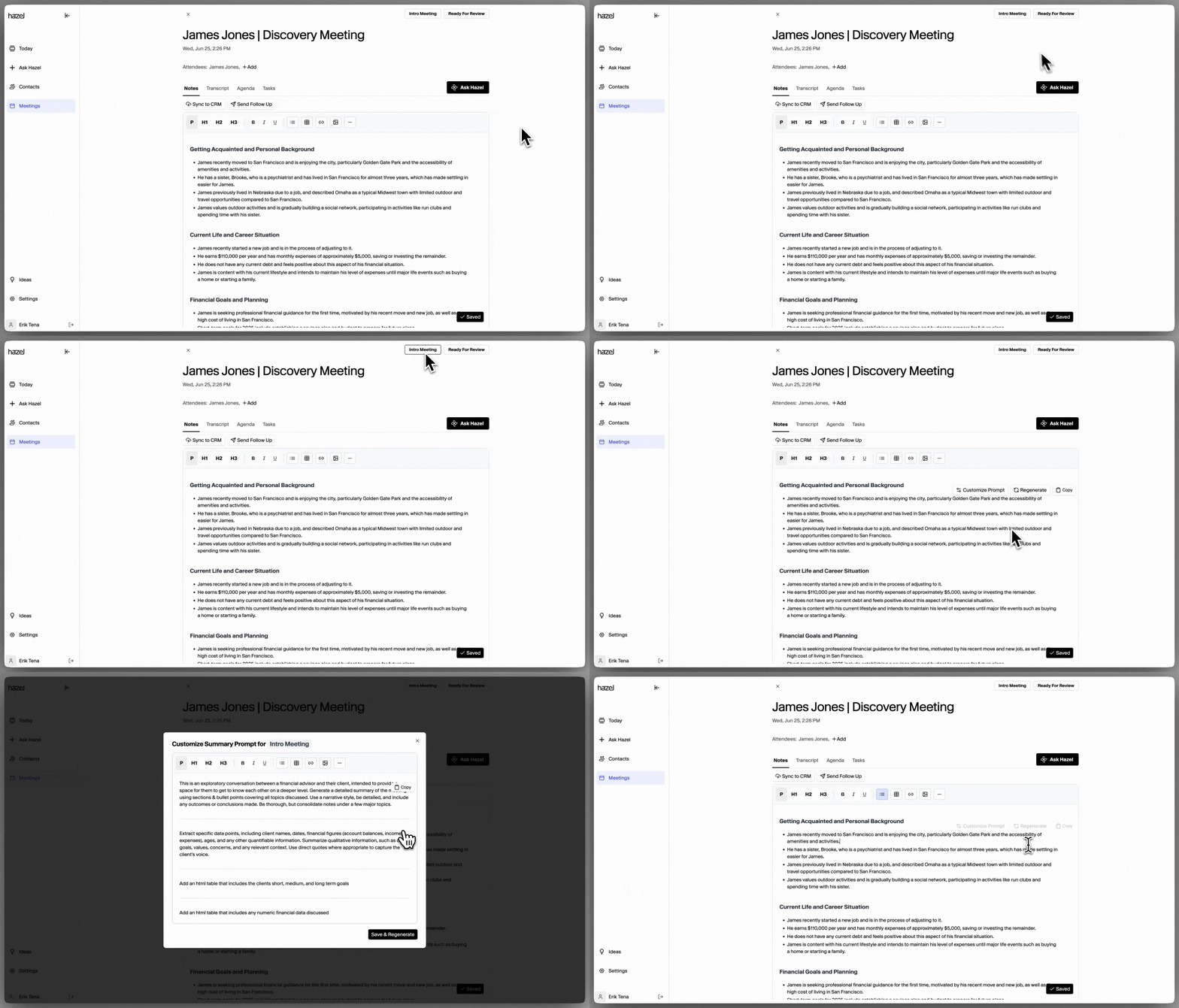
- Head to any meeting that is ‘Ready for Review’
- At the top of the meeting notes, click the button that says ‘Customize Prompt’
- Edit the prompt
- Click ‘Save and Regenerate’
Edit Prompts within Meeting Settings
Edit Prompts within Meeting Settings
- Head to Settings / Meeting Settings
- You can either add a new Meeting Type or edit existing Meeting Types.
- Select the Meeting Type you would like to edit, or click ‘Add Meeting Type’ to create a new meeting type.
- Click ‘Save and Regenerate’
If you don’t want to start from scratch, you can duplicate the ‘General Meeting’ type prompts by creating a new meeting type and only filling in the Name, then clicking save.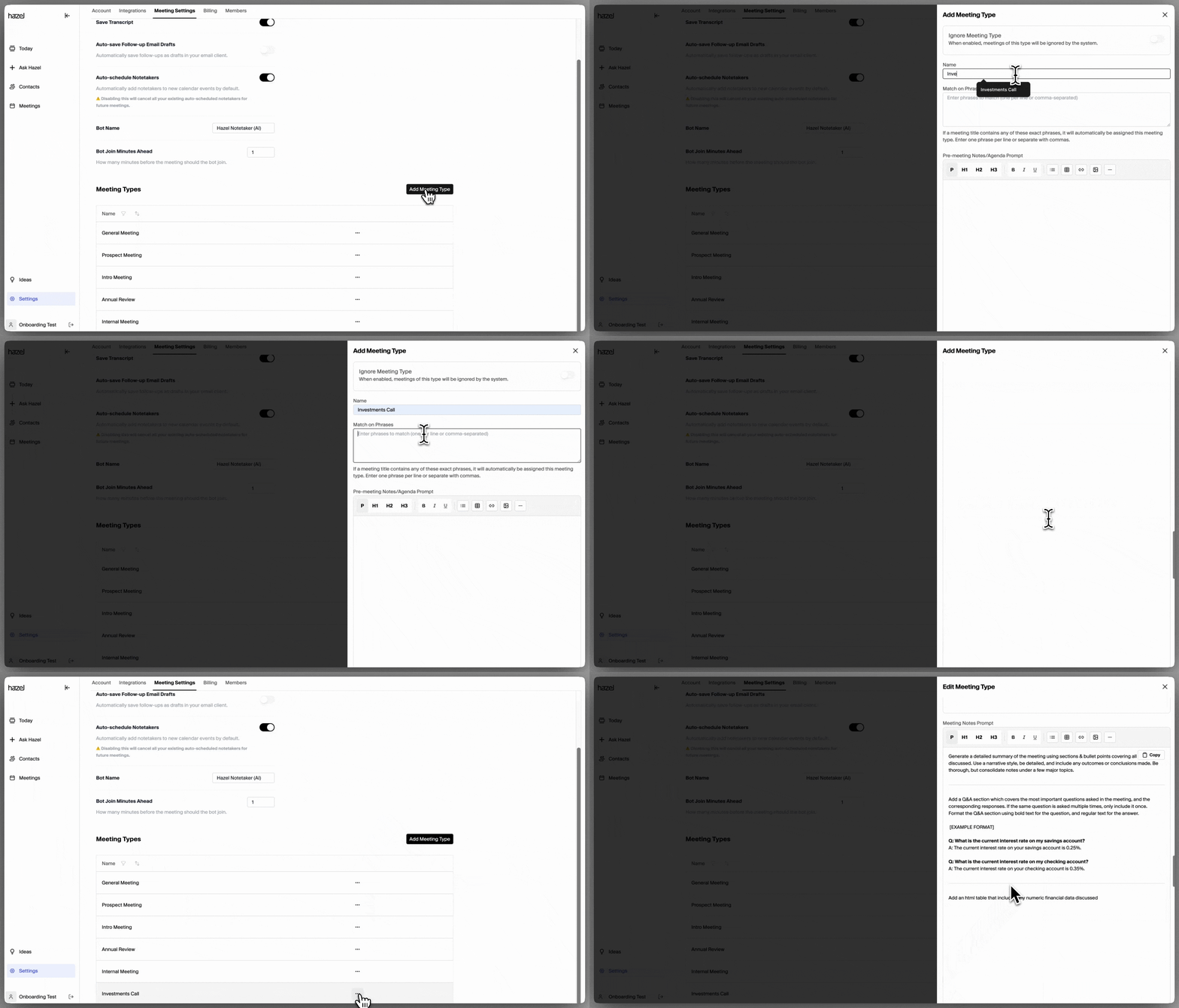
-
Match on Key Phrases
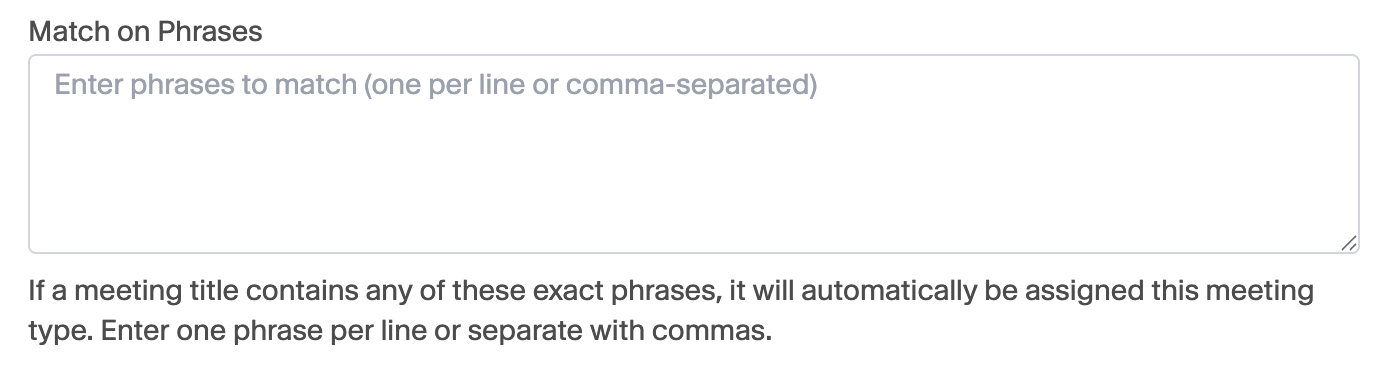
- You can include keywords or phrases that Hazel will use to automatically identify and match the correct meeting type.
- For example, adding “annual review” as a key phrase ensures that when those words appear in a calendar invite, Hazel automatically categorizes the meeting as an Annual Review.