Hazel can record via the following methods
Recording Online Meetings
Recording Online Meetings
Once you connect your Calendar, Hazel will be automatically scheduled to join calendar events with meeting links available. At the time of the event, Hazel will be in the waiting room waiting for you to admit it.We support online video recording with Zoom, Microsoft Teams, and Google Meet.
You can verify Hazel will join your online meetings by clicking on the menu icon for the particular meeting you’re curious about. If ‘Take Notes’ is on, then Hazel will join your meeting.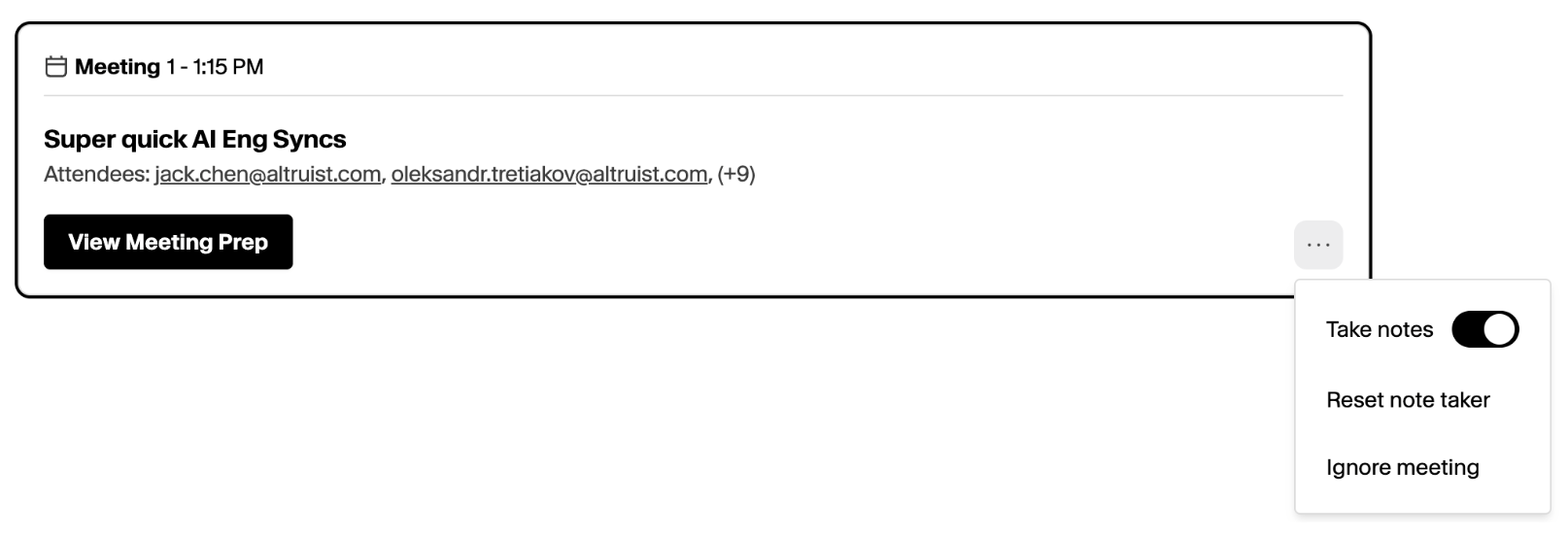
You can verify Hazel will join your online meetings by clicking on the menu icon for the particular meeting you’re curious about. If ‘Take Notes’ is on, then Hazel will join your meeting.
Recording a New Meeting That’s Not on Your Calendar
Recording a New Meeting That’s Not on Your Calendar
Navigate to the Meetings page, and select ‘New’ on the top right. Upon clicking it, you’ll have the option to enter the Meeting Name, and select whether it’s a Virtual Meeting or a Manual Recording.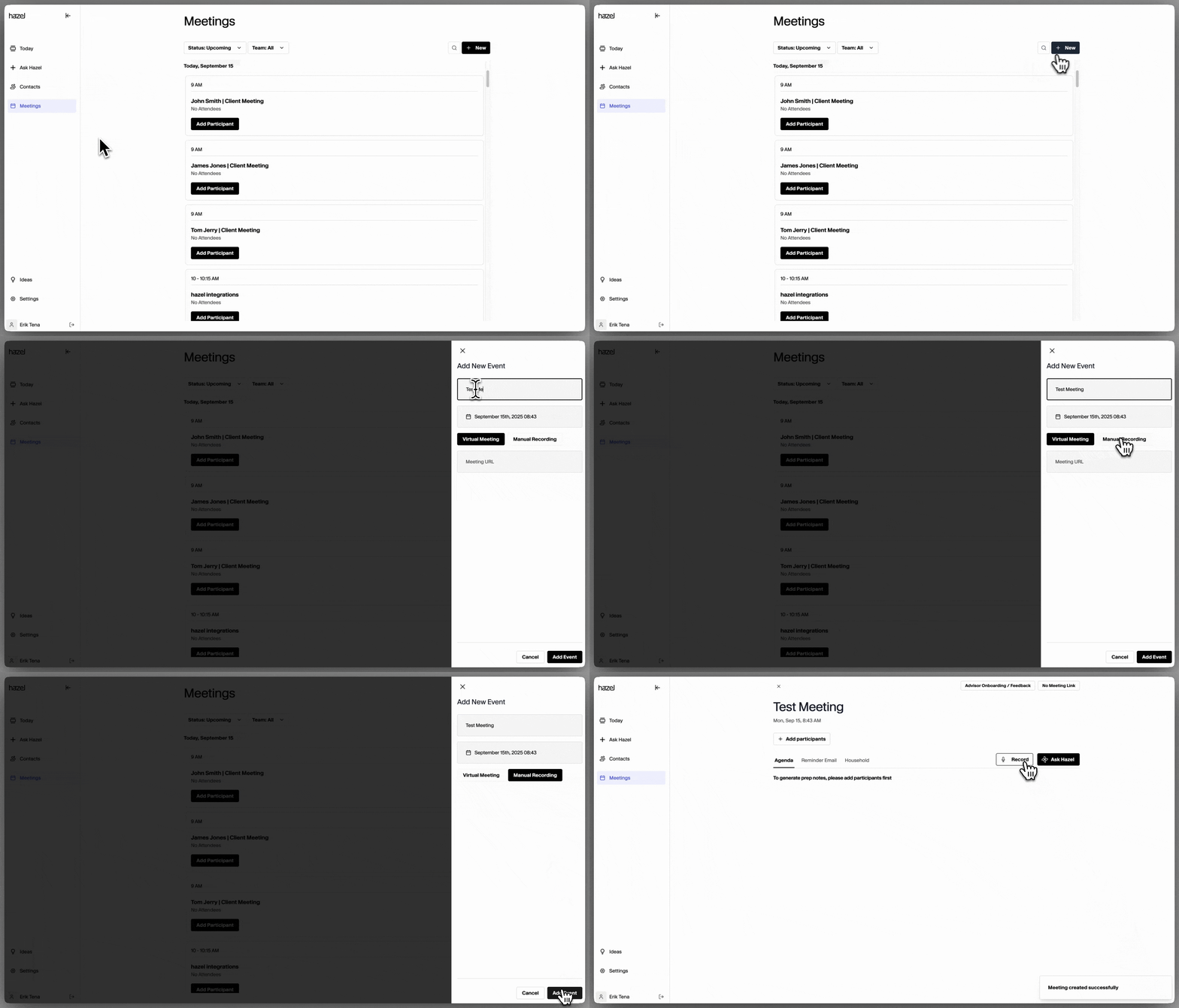
- If it’s a Virtual Meeting, enter your meeting url link and Hazel will join your call in less than a minute.
- If it’s an Manual Recording, proceed and start recording directly from your computer, or upload a media file (audio and video are both accepted).
Recording an In Person Meeting on your Browser
Recording an In Person Meeting on your Browser
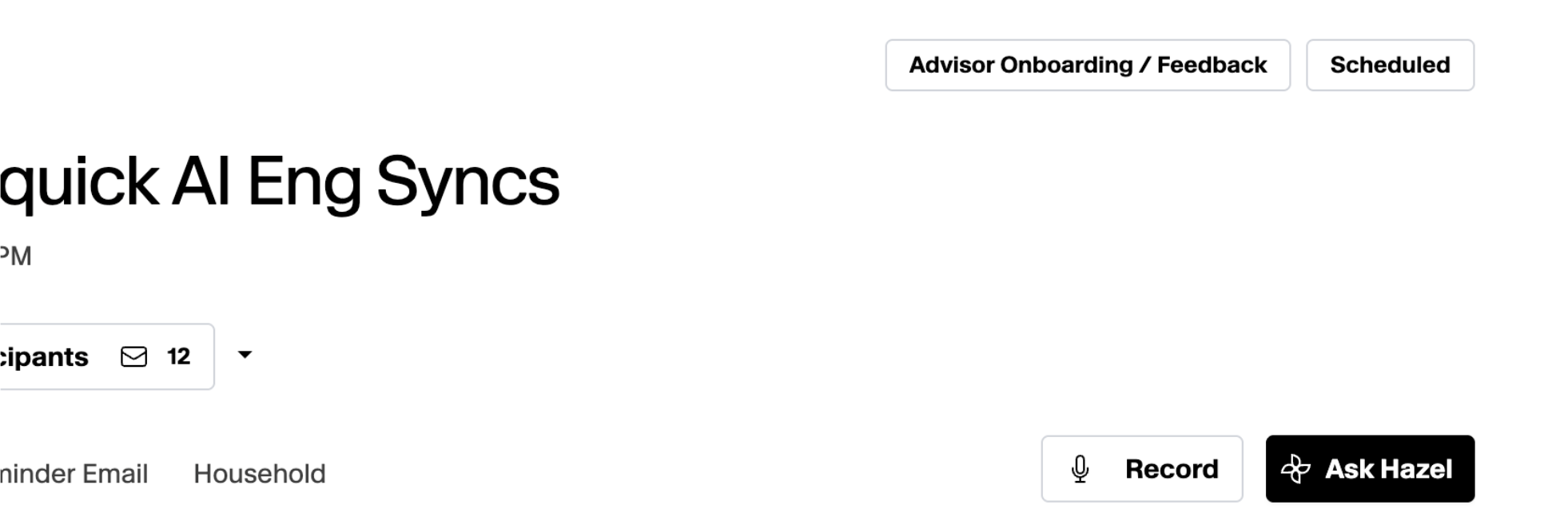
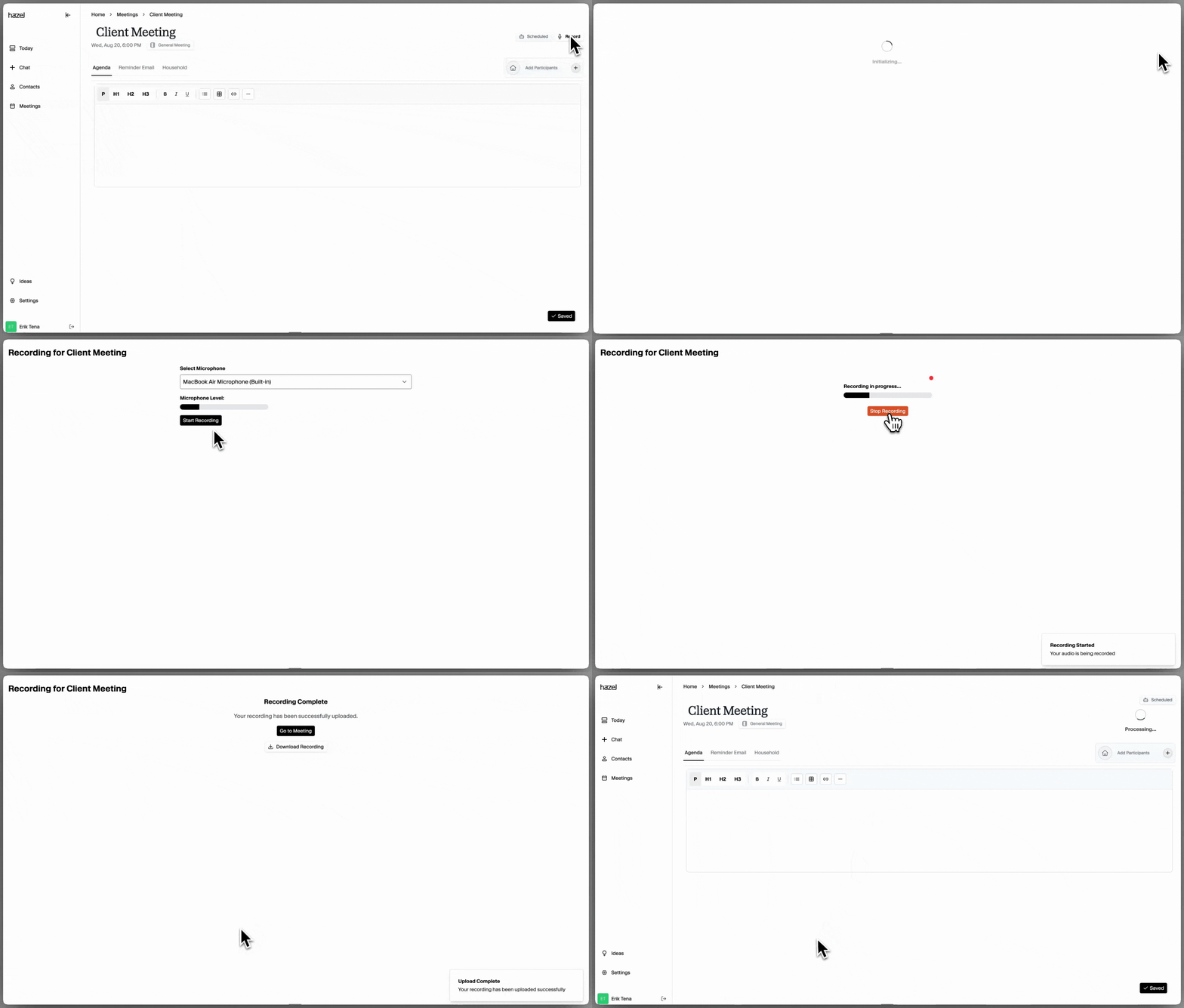
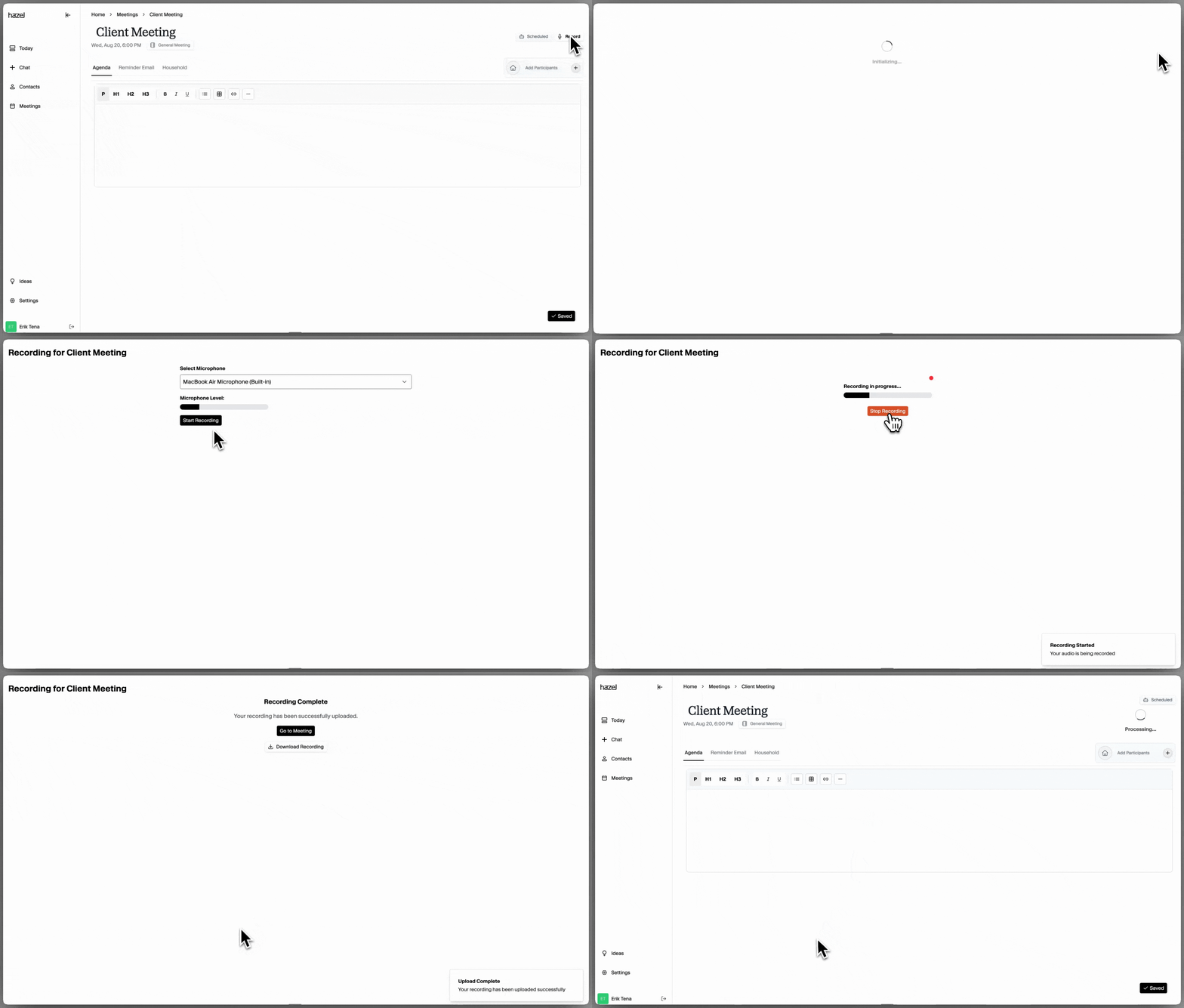
Navigate to the upcoming meeting, and select ‘Record’ on the top right. Upon clicking it, you’ll have the option to start recording directly from your computer, or upload a media file (audio and video are both accepted)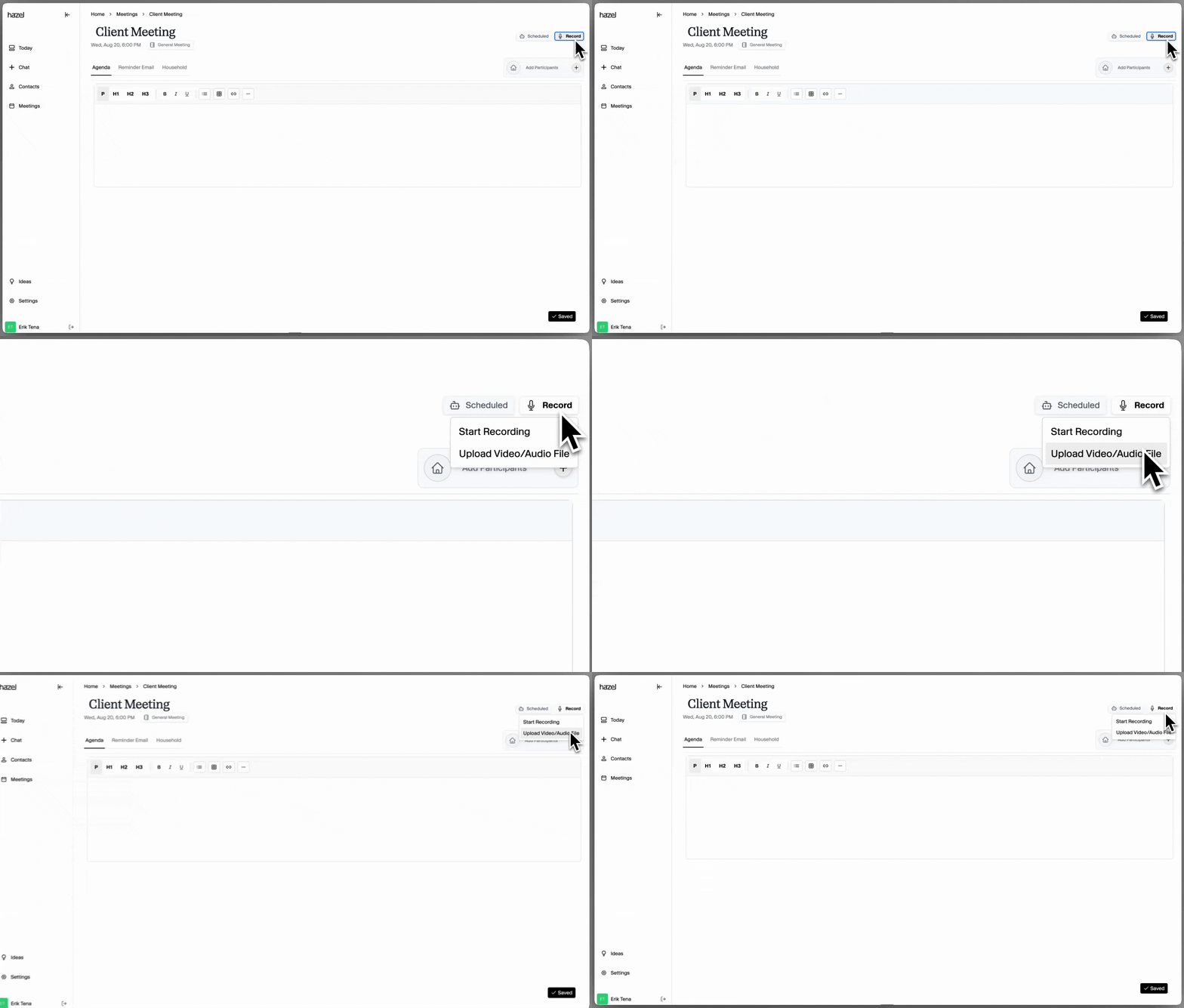
Recording In Person Meeting on your iOS Device
Recording In Person Meeting on your iOS Device
- Download the hazel.ai app from the App Store.
- Sign in to your Hazel account
- Select the meeting you would like to start recording or create a new meeting
Uploading Audio or Video Files
Uploading Audio or Video Files
Navigate to the upcoming meeting, and select ‘Record’ on the top right. Upon clicking it, you’ll have the option to start recording directly from your computer, or upload a media file (audio and video are both accepted). Click on
Upload Audio/Video FileRecording a Phone Call
Recording a Phone Call
You can record phone calls today by recording from your computer and having your phone on speaker so both voices are captured by Hazel. To do so:Navigate to the upcoming meeting, and select ‘Record’ on the top right. Upon clicking it, you’ll have the option to start recording directly from your computer.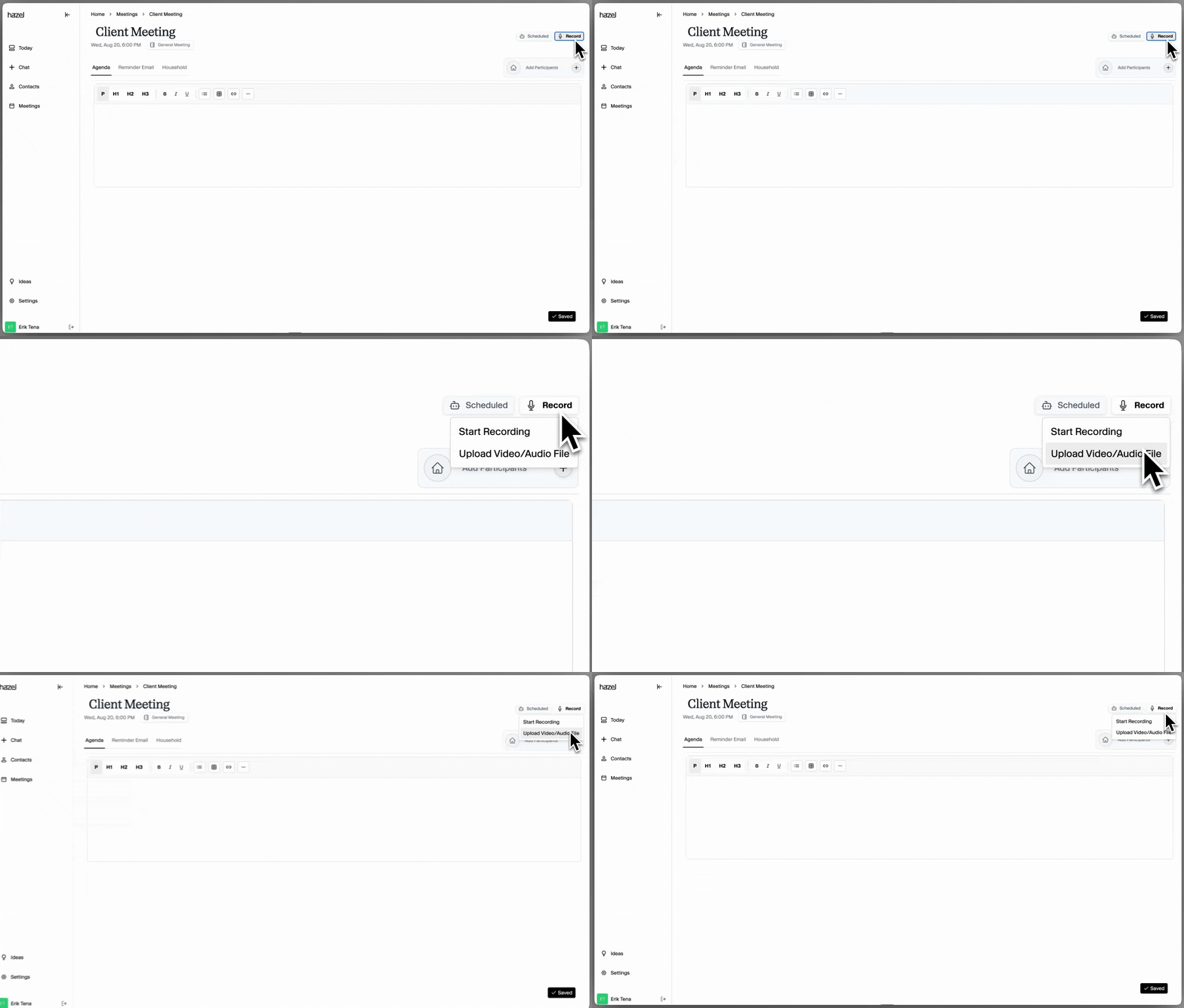
Disabling / Enabling Auto-scheduled Notetakers
Option 1: Disable Notetaker On All Calendar Events
Option 1: Disable Notetaker On All Calendar Events
Hazel automatically adds notetakers to new calendar events by default. If you would like to disable this option, you can do so within Settings → Meeting Settings. Be aware that disabling will cancel all your existing auto-scheduled notetakers for future meetings.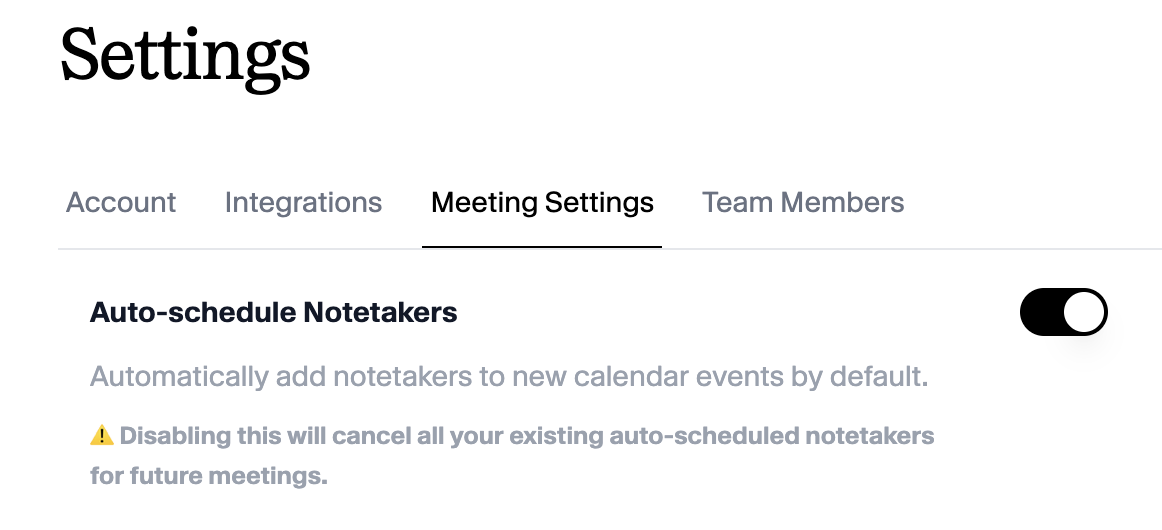
Option 2: Disable Notetaker Individually
Option 2: Disable Notetaker Individually
When in the Overview or Meetings view, there is an option to disable the notetaker one a one-off basis. Click on the menu icon for the meeting and toggle off ‘Take notes’.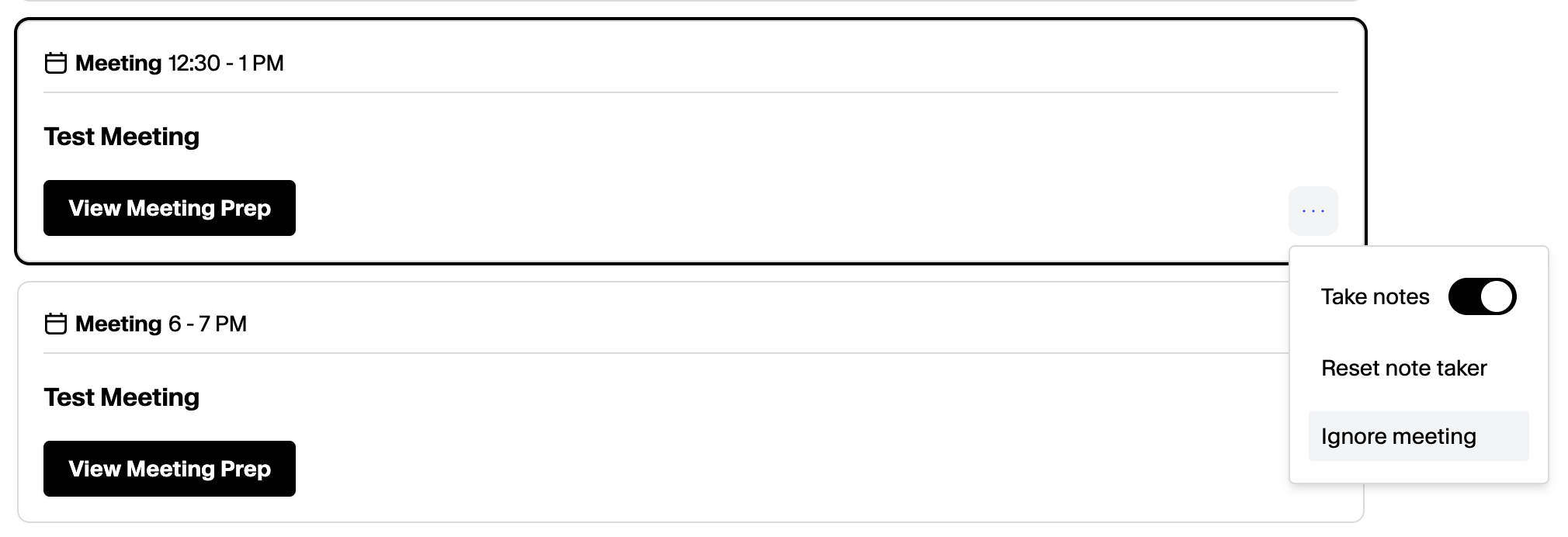
Downloading a Video Recording
Downloading a Video Recording
Downloading a Video Recording
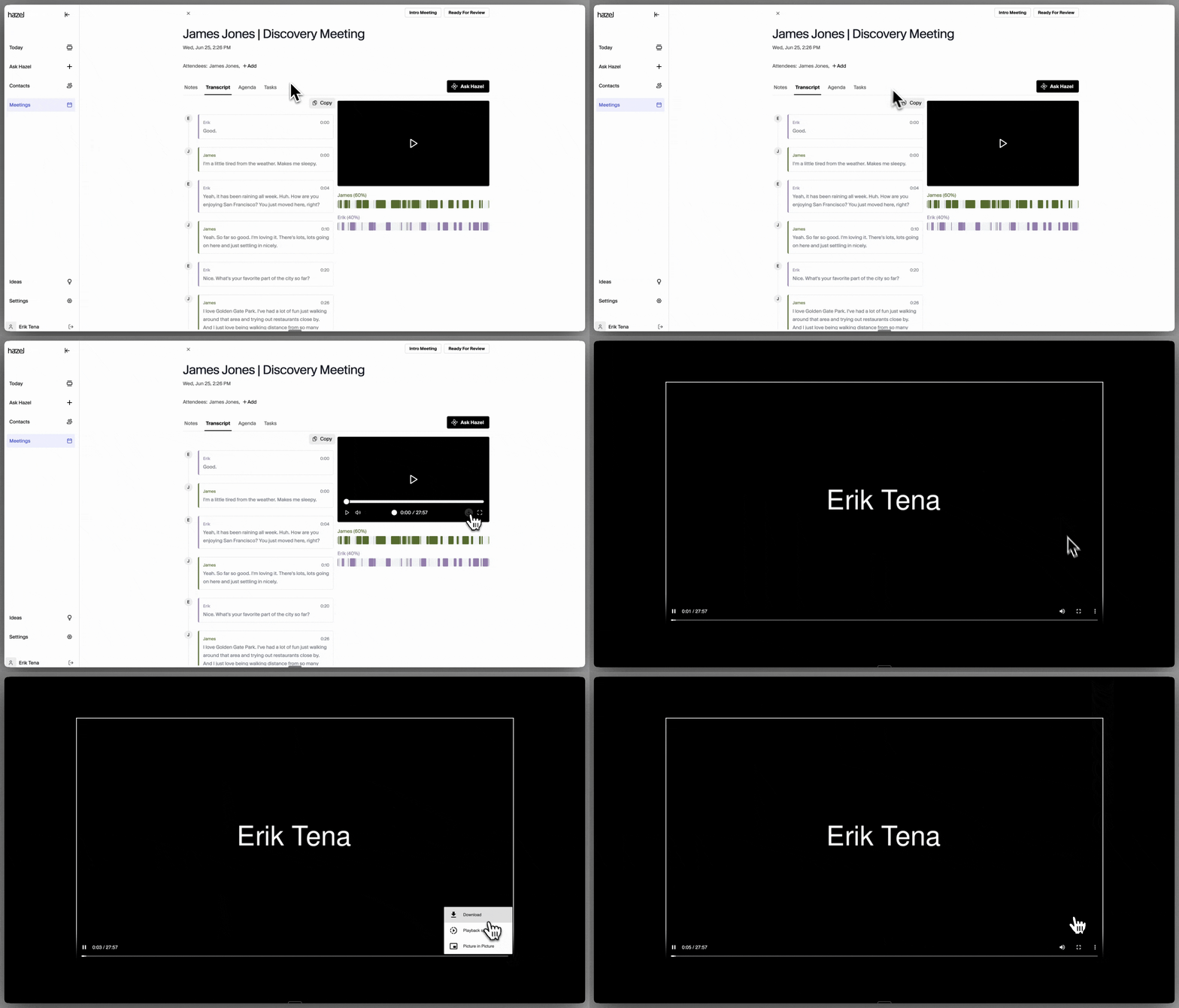
You can download a Video Recording within the Transcript section of a call if you have ‘Save Video’ turned on in Settings. If you would like to disable this option, you can do so within Settings → Meeting Settings. To download the Video Recording, go to the Meeting you would like to download, and select the Download icon. This will open the video in a new tab. In the new tab, select Download and wait for the video to download on to your device.