

Ask Hazel Troubleshooting
Hazel is no longer responding to my in a chat thread.
Hazel is no longer responding to my in a chat thread.
The 'Ideas' link is not working. I am getting the following message, 'Hazel's feedback is private. Log in to see if you have access.'
The 'Ideas' link is not working. I am getting the following message, 'Hazel's feedback is private. Log in to see if you have access.'
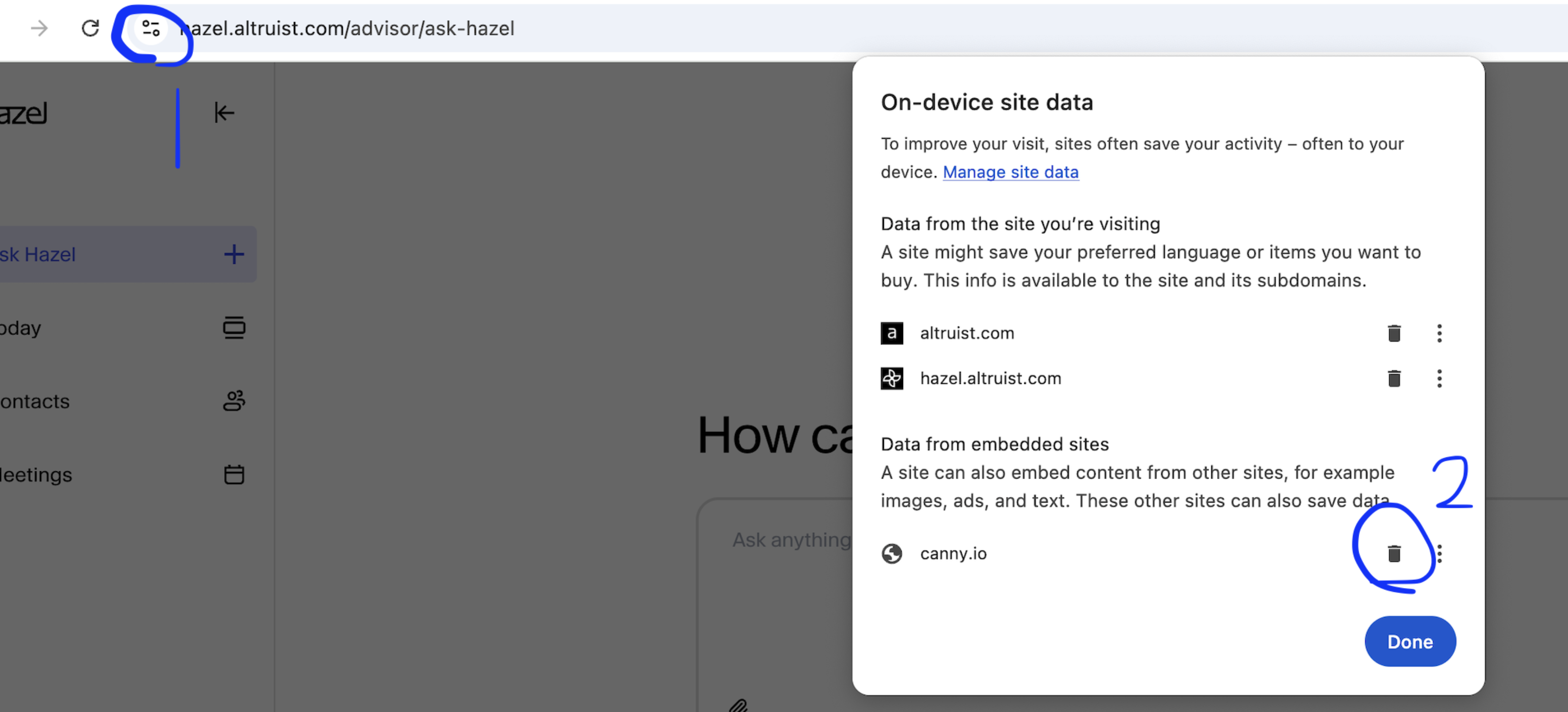
I connected Hazel to Altruist but it is not populating my Altruist contacts. Why?
I connected Hazel to Altruist but it is not populating my Altruist contacts. Why?
Meetings Troubleshooting
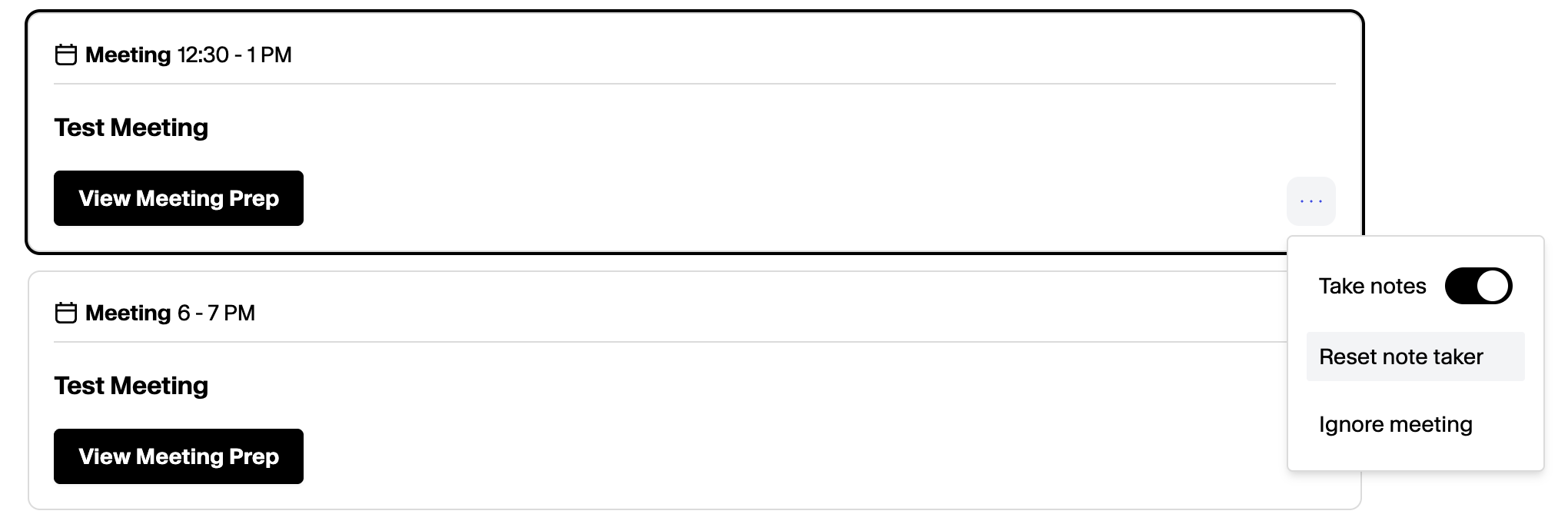
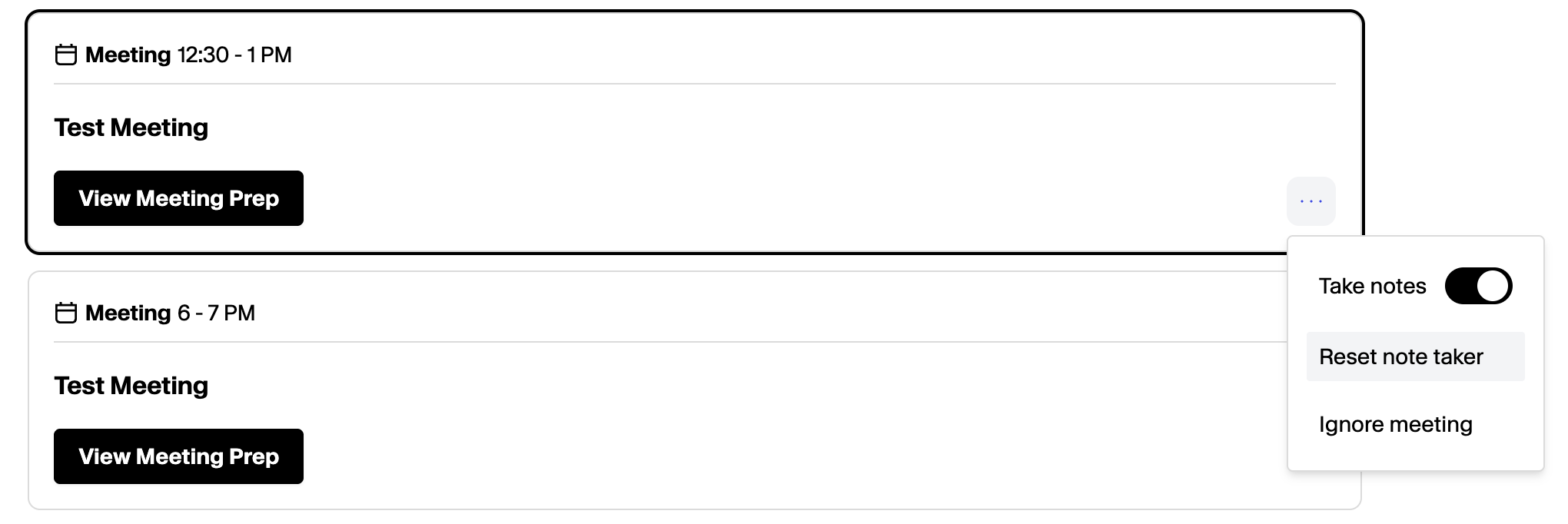
Resetting Notetaker
Resetting Notetaker
- Hazel was not admitted and left the waiting room.
- Hazel was denied / kicked out of meeting, whether on purpose or on accident.
- Hazel experienced connectivity issues.
Hazel join a Zoom call I was in, but afterward there was no transcript.
Hazel join a Zoom call I was in, but afterward there was no transcript.
- In Recording tab, verify that
Internal meeting participantsandExternal meeting participantsare checked.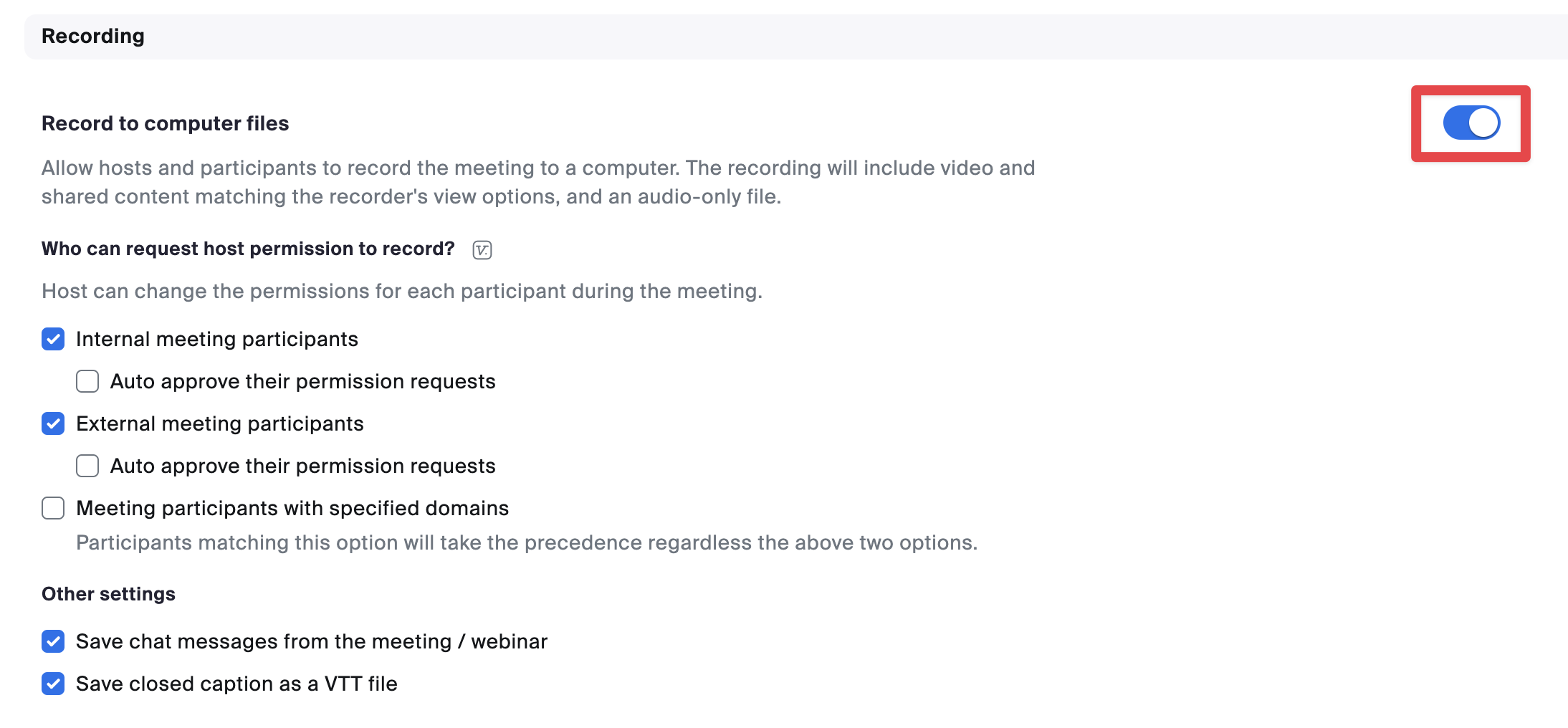
- In Recording tab, verify that Record to computer files is toggled on.
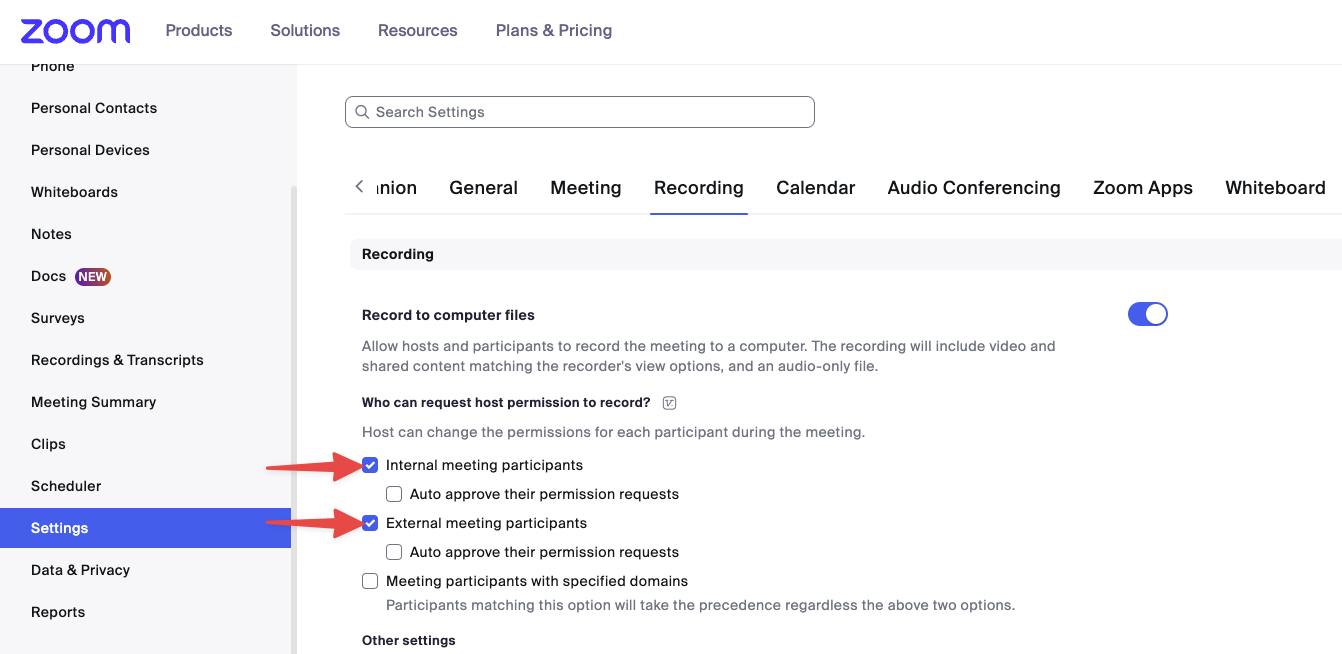
- While in a Zoom Meeting, verify that
Request Local RecordingPermission is turned on.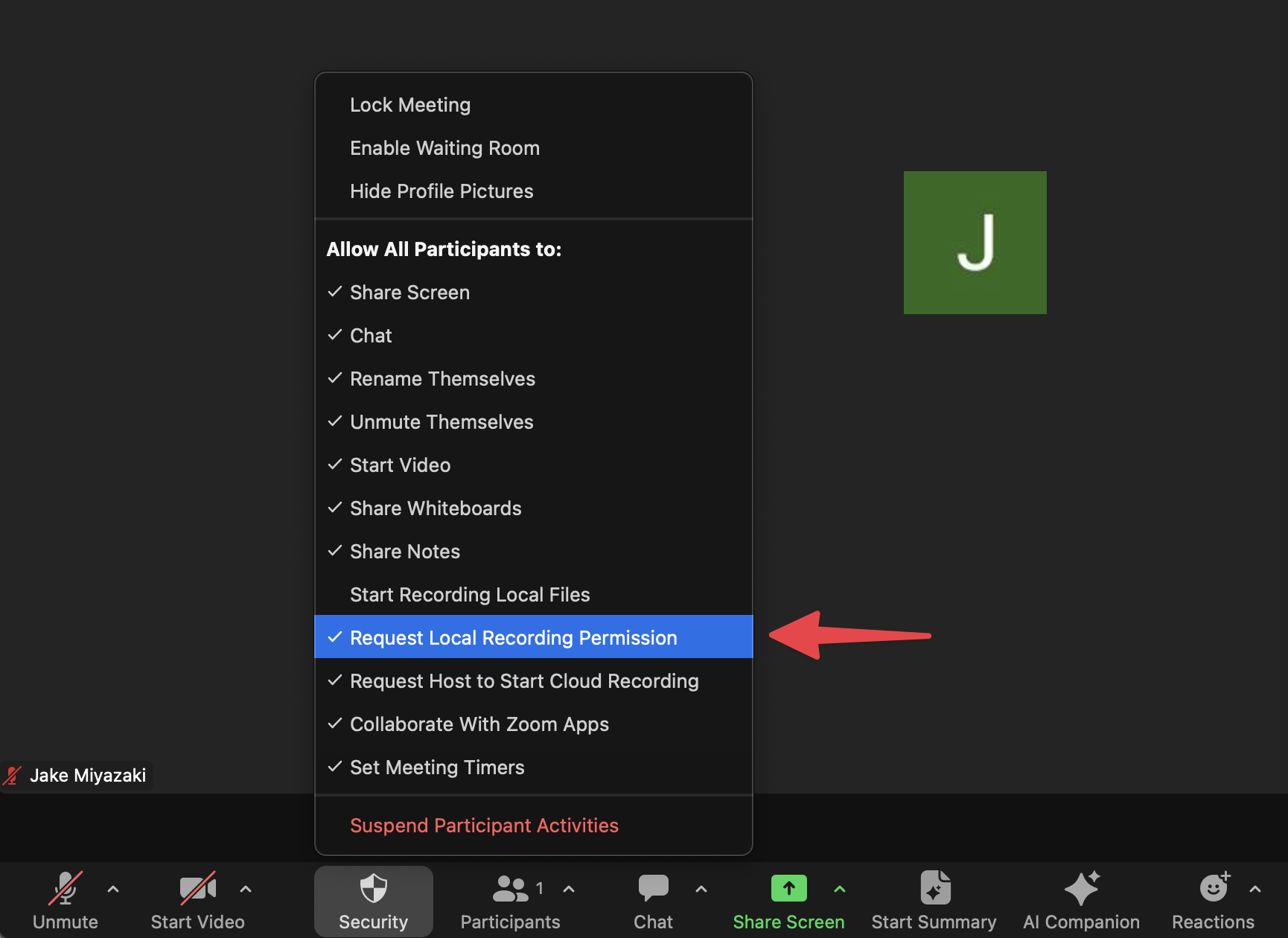
How did not join my Zoom call, nor was she in the waiting room, why?
How did not join my Zoom call, nor was she in the waiting room, why?
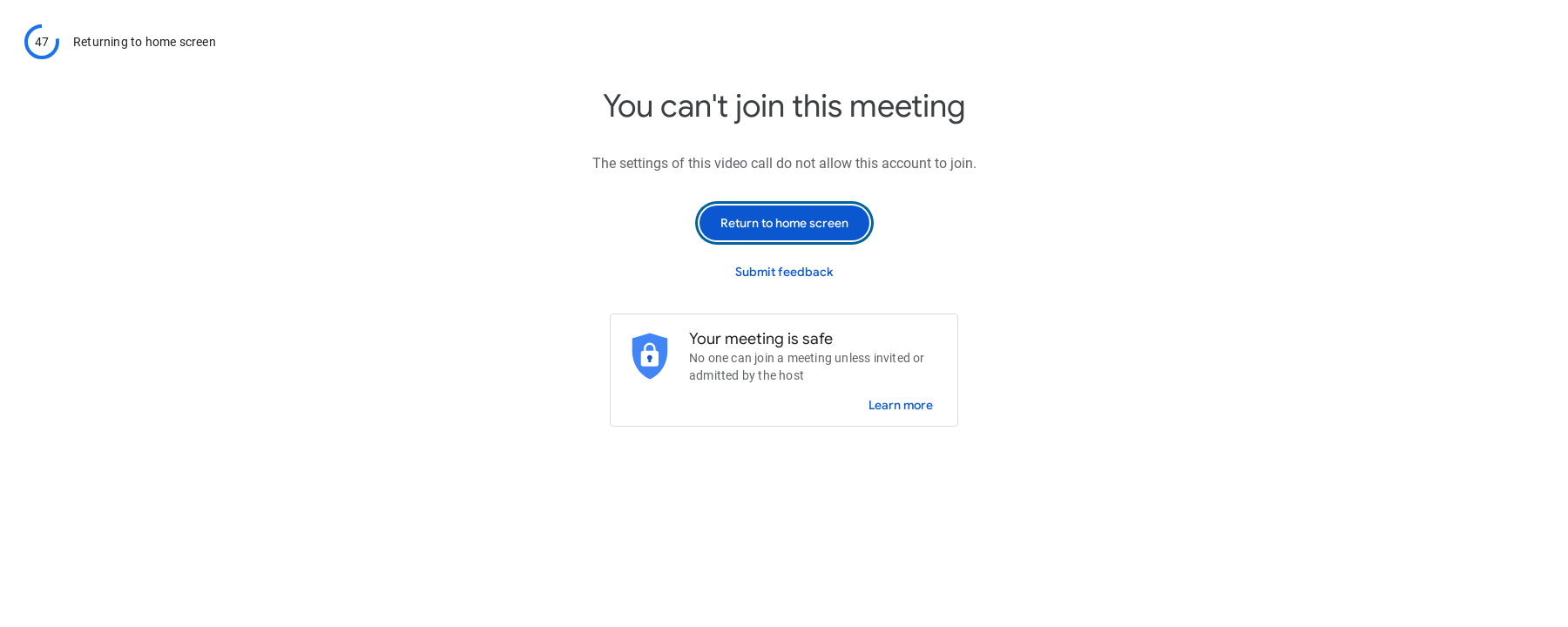
Hazel did not join my Google Meet call, nor was she in the waiting room. Why?
Hazel did not join my Google Meet call, nor was she in the waiting room. Why?
-
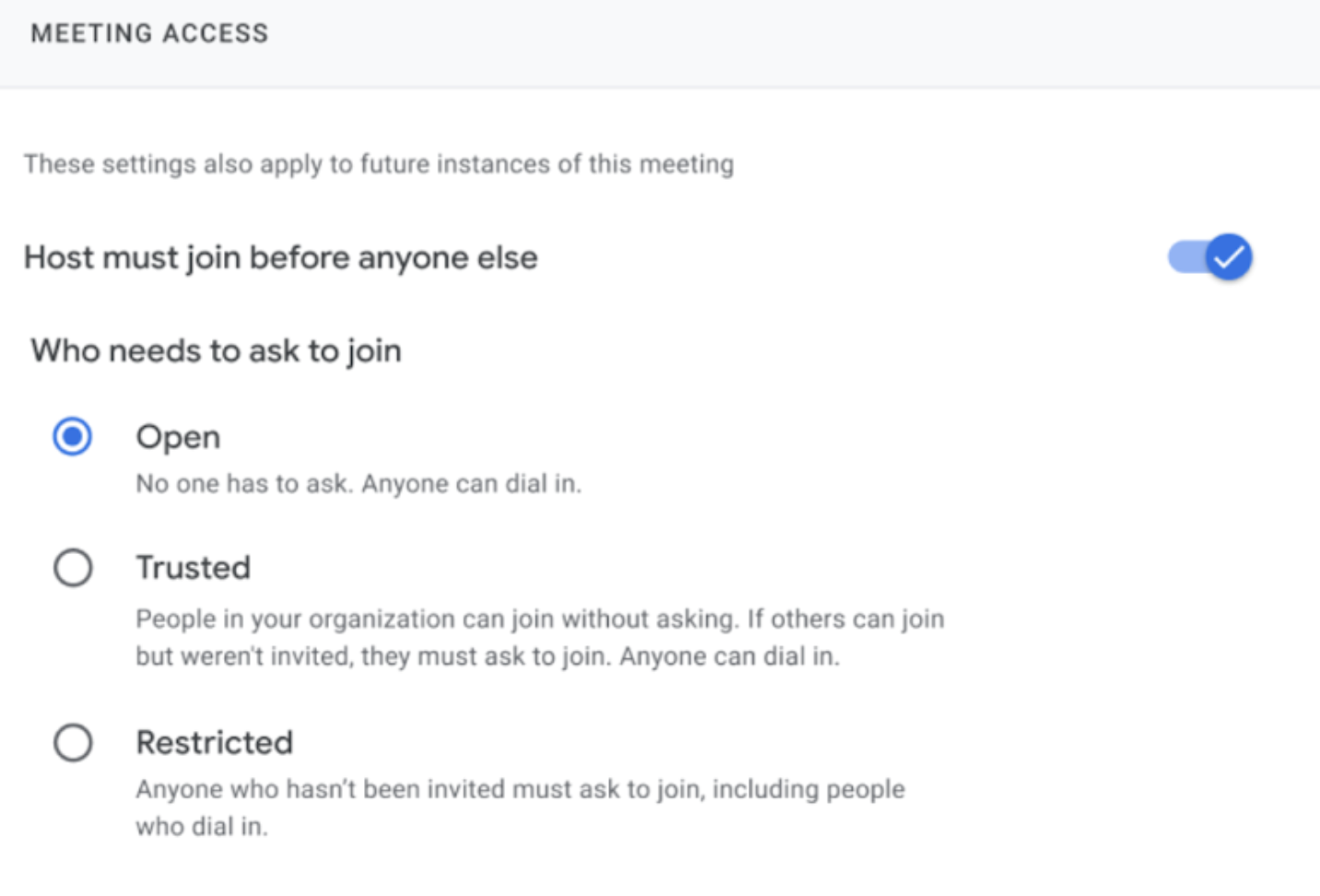
Under Meeting Access > Meeting Access type: verify that the
Anyone with the meeting link can ask to joincheckbox is checked.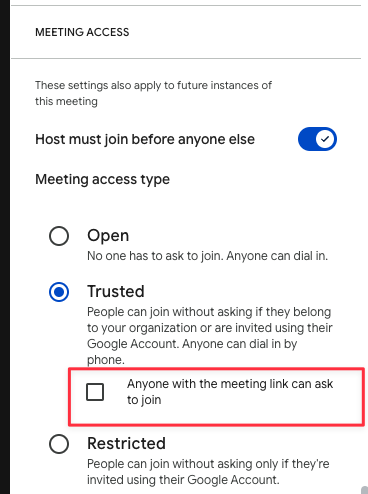
- Go to the Google Meet admin center.
- Expand Host Controls > Meeting Access.
-
Under Who needs to ask to join, select Open.
Hazel did not join my Microsoft Teams call, nor was she in the waiting room. Why?
Hazel did not join my Microsoft Teams call, nor was she in the waiting room. Why?
- Go to the Teams admin center.
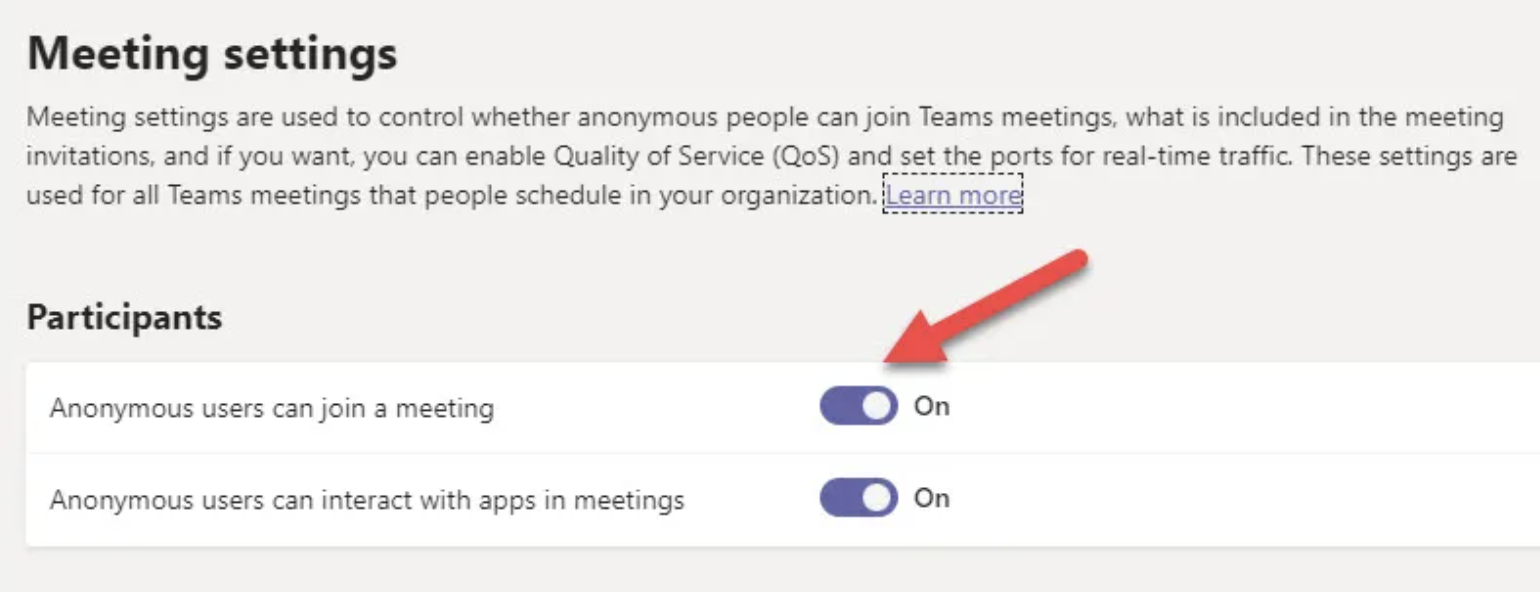
- Expand Meetings > Meeting settings.
-
Under Meeting Join and Lobby: verify that the
Anonymous users can join a meetingsetting is toggled to On. -
Save your updates.
I accidentally synced the meeting notes to the wrong Household/Contact. What should I do?
I accidentally synced the meeting notes to the wrong Household/Contact. What should I do?
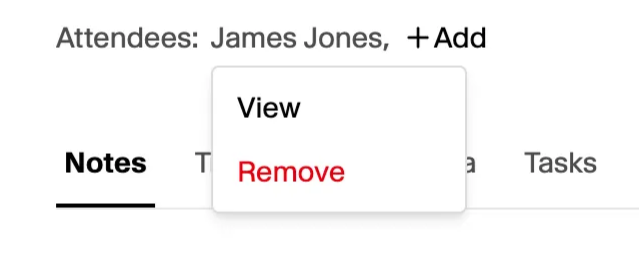
- Within the Meetings page, remove the incorrect profile from the attendees and then add the correct profile.
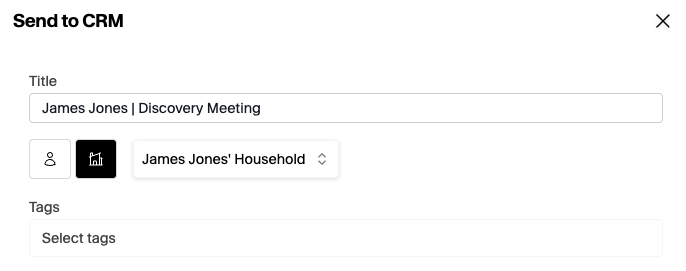
- Once the correct profile is selected, click on ‘Sync to CRM’ and re-sync the notes to the correct profile. Be sure to review the title, household/contact/tags section before you sync to CRM.
- You’ll need to delete the notes from the incorrect profile within your CRM so the incorrect meeting data is not associate the the incorrect household. Head to the Household, then within the Activity section, find the note, and click Delete.
How do I upload a meeting that failed to upload via iOS App
How do I upload a meeting that failed to upload via iOS App
- If there is a file here, download and upload within the Hazel web app.
- If there is no file here, we do not have any meeting data on file and the recording was lost.
How do I upload a meeting that failed to upload via Browser?
How do I upload a meeting that failed to upload via Browser?
Record and select Upload Saved Recording. If we have any reording data on file, we will upload it.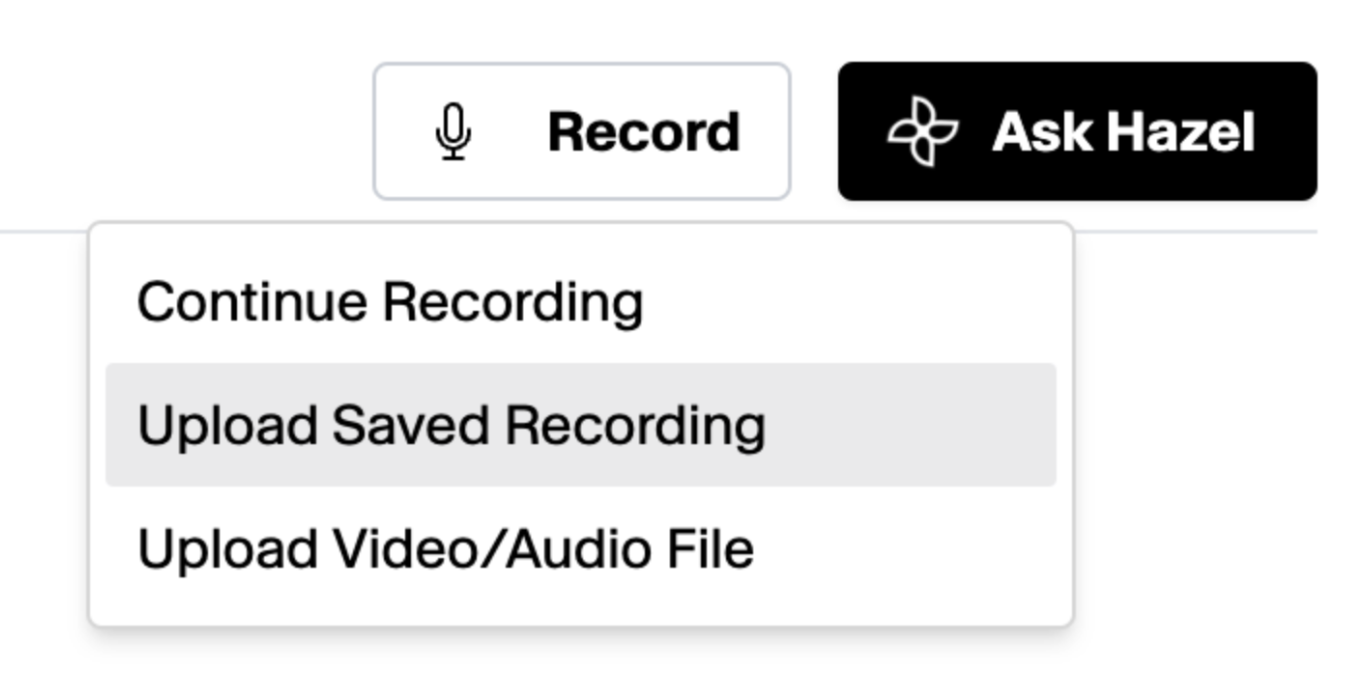
Upload Saved Recording, then we do not have any meeting data on file and the recording was lost. Reach out to support@hazel.ai for further support.How do I prevent meetings recorded via Browser from failing to process?
How do I prevent meetings recorded via Browser from failing to process?
I can’t see my team members' meetings, even though their calendar is connected and they can see their meetings. Why?
I can’t see my team members' meetings, even though their calendar is connected and they can see their meetings. Why?
- Ask the meeting owner to open the meeting in Hazel and review Meeting Details → Attendees.
- Confirm there’s at least one attendee listed and that the meeting is associated with the correct Household/Contact.
- This links the meeting so other team members can view it, and allows Ask Hazel to reference it.
Phone Call Recording Troubleshooting
I called my Hazel line but no meeting appeared
I called my Hazel line but no meeting appeared
Only my voice is in the transcript
Only my voice is in the transcript
My Hazel number changed
My Hazel number changed
Hazel couldn't reach my number with Join My Call
Hazel couldn't reach my number with Join My Call
+1 for US numbers), and try again. If your phone declined the call or it went to voicemail, Hazel reports that and you can retry.I don't see Record Phone Calls in my settings
I don't see Record Phone Calls in my settings
Email Troubleshooting
My signature is not HTML.
My signature is not HTML.
-1.png?fit=max&auto=format&n=bqO-ZqrwWF4KlcBG&q=85&s=89e9b533042059017f44efed8ce3cb48)
- Copying your email signature into a word document
- Attach the document + the following prompt into Ask Hazel
Hazel, turn the email signature in the document attached into HTML text - Copy the HTML text into Settings → HTML Email Signature
My logo is not loading in the signature.
My logo is not loading in the signature.
.png?fit=max&auto=format&n=1Wa2B6tLpeSoW6ze&q=85&s=8e84d5a7c7f35b92b80b765a01020792)
-
CTRL+F
imgand find theimg srcsection of text -
Replace everything in “
double quotes” with a publicly stored imageEx. img src=“/41235/file_attachments/5952192” → img src=“https://hazel.ai/images/logo-footer.svg”.png?fit=max&auto=format&n=bqO-ZqrwWF4KlcBG&q=85&s=68a346905cf47bf9ddb738955be1f9a4)
Hazel did not sync historical emails. Why?
Hazel did not sync historical emails. Why?
- Hazel can’t backfill historical emails because there are no contacts/households to match emails to.
- You should still see new inbound screened emails going forward in the Inbox (left sidebar).
- If you’re not seeing new emails either, check Settings → Account → Email Preferences. Emails that aren’t associated with a contact/household may be filtered out based on your screening preferences.
- Go to Settings → Integrations
- Disconnect your Email integration
- Refresh the page
- Reconnect your Email integration to trigger a resync
My email sync is broken and I am no longer receiving emails in Hazel.
My email sync is broken and I am no longer receiving emails in Hazel.
- Go to Settings → Integrations
- Disconnect your Email integration
- Refresh the page
- Reconnect your Email integration to trigger a resync
Account Troubleshooting
My account is still suspended after updating my credit card details.
My account is still suspended after updating my credit card details.
My team member and I are on different firm accounts. How do we get on the same account?
My team member and I are on different firm accounts. How do we get on the same account?
John and Henry are on separate firm accounts. If Henry’s firm is the one you’re keeping, Hazel Support deactivates John. John won’t be able to log in again until Henry invites him (Settings → Members) and John accepts the invite email.How to fix it
- Decide which firm account you want to keep.
- Hazel Support deactivates the user who will be moving.
- The admin of the firm you’re keeping goes to Settings → Members and sends an invite.
- The deactivated user must accept the invite from the email to regain access.