

Managing Save Videos and Transcripts
You can configure meeting recordings and transcripts in Settings / Meeting Settings. Videos and transcripts are saved by default. If Save Videos or Save Transcripts are toggled off, then updates will be applied to all future meetings.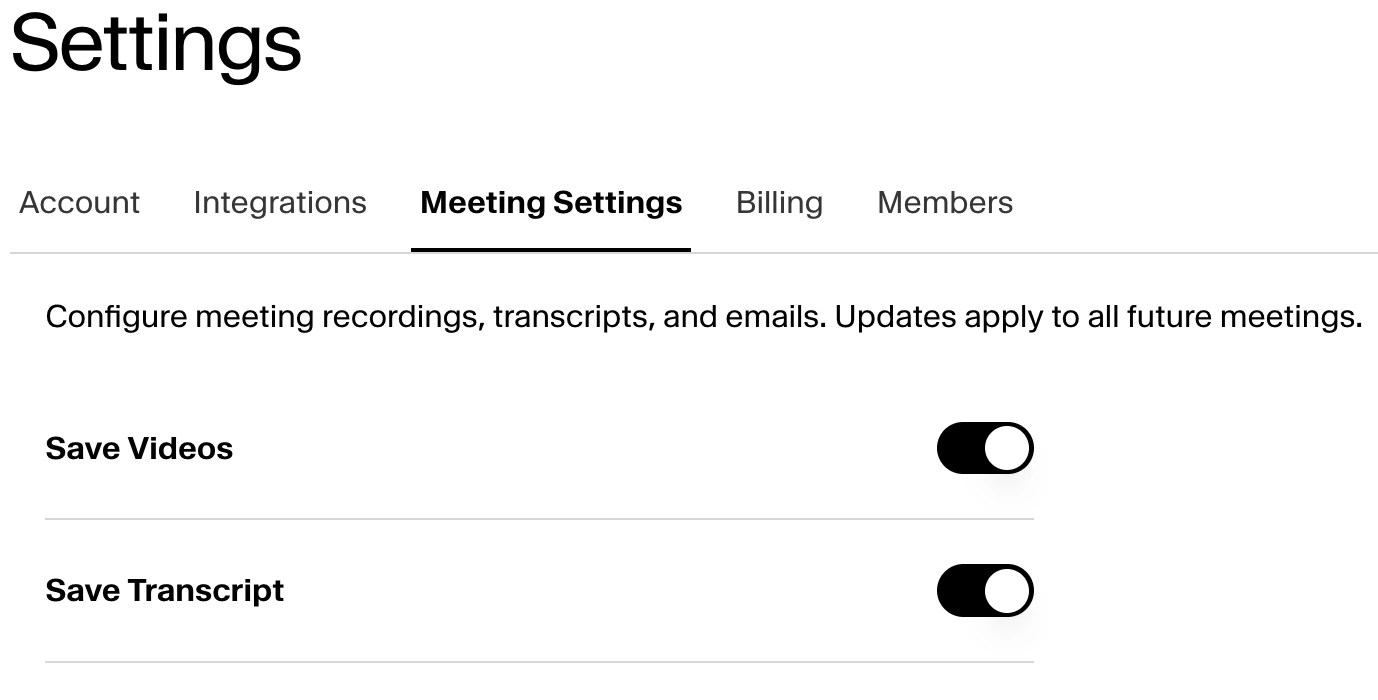
Auto-Schedule Notetakers
Notetakers are automatically added to new calendar events by default. You can disable Auto-schedule Notetakers by toggling off ‘Auto-schedule Notetakers’ in Settings / Meeting Settings. Disabling this will cancel all your existing auto-scheduled notetakers for future meetings.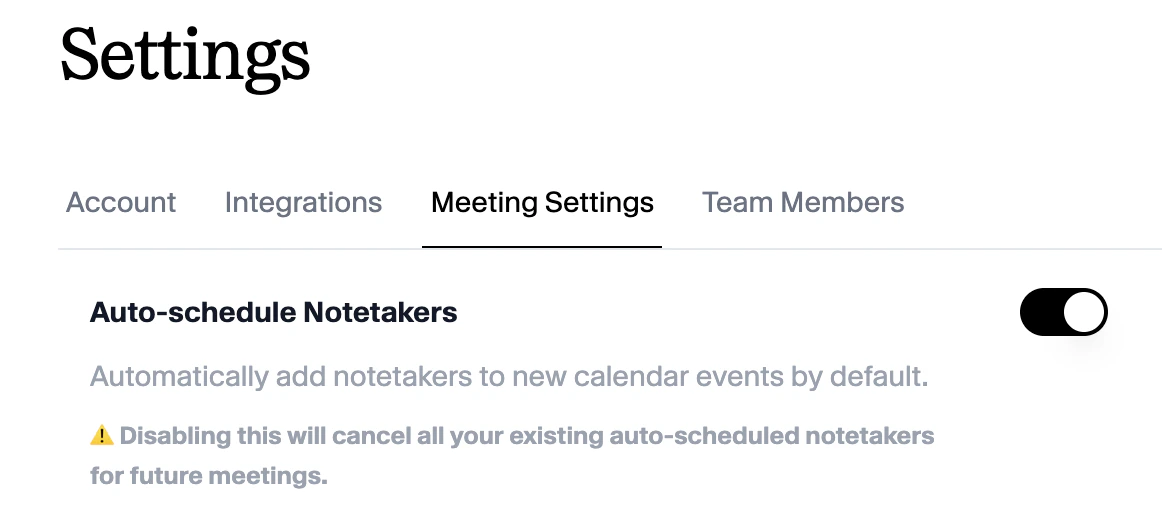
Updating the Notetaker’s Name
You can configure the name of the notetaker joining your meetings in Settings / Meeting Settings / Bot Name. By default, the notetaker will be names ‘Hazel Notetaker’. Any changes made will be applied to all future meetings.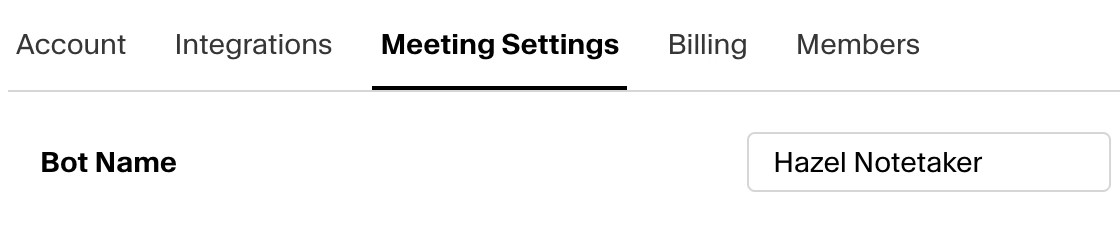
Adjusting the Scheduled Join Time
You can configure how many minutes before the meeting the bot should by adjusting in Settings / Meeting Settings / Bot Join Minutes Ahead. By default, the notetaker will join your meetings 1 minute ahead of the scheduled meeting time. You can adjust this as early as 10 minutes before the scheduled meeting time.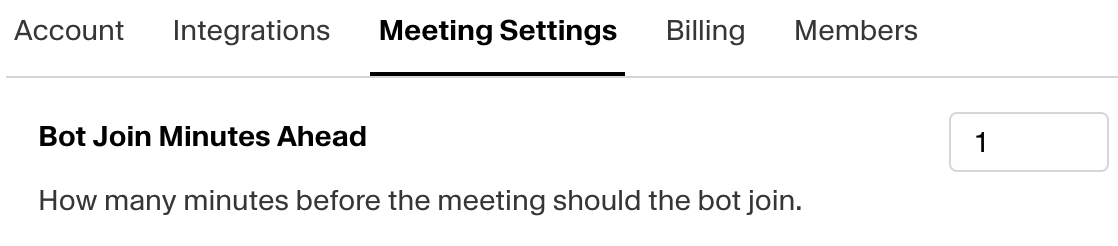
Meeting visibility
Meeting visibility controls who at your firm can see a recorded meeting — its transcript, notes, tasks, and summary. You set a firm-wide default here, and you (or the meeting’s owner) can change it on any individual meeting.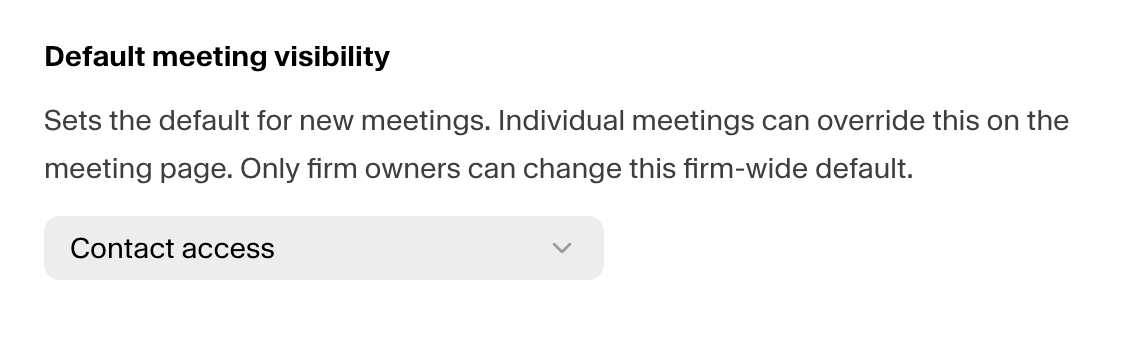
The four options
From most private to most open:Firm Owners always have access to every meeting, regardless of the setting. So “Private” really means only you and your firm’s Owners.
Set your firm’s default
In Meeting Settings, choose the visibility that should apply to every new meeting. New meetings use this default automatically — most firms leave it on Contact access so meetings are visible to the same teammates who already work with that client. You can change the default at any time; it applies to meetings going forward.Change visibility for a single meeting
Open any meeting and use the visibility selector in the header to switch it to any of the four options — or set it back to your firm’s default. The change takes effect immediately.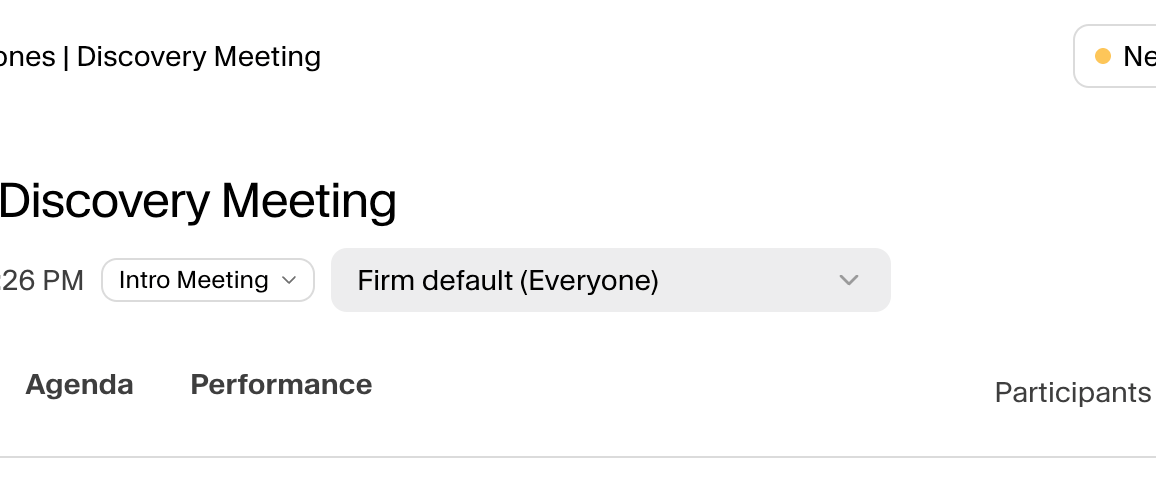
- The option names and the “Private (firm owners can access)” caveat match the exact in-app wording, so the doc lines up with what users see.
- I led the table from most-private to most-open and flagged Contact access as the default (it’s the firm default in the product).
- If your firm has meeting visibility turned off, the selector doesn’t appear — say the word if you want a one-line note covering that edge case, though it’s probably more detail than a help-center reader needs.