Hazel can record via the following methods
Video Meetings
Recording Online Meetings
Recording Online Meetings
Once you connect your Calendar, Hazel will be automatically scheduled to join calendar events with meeting links available. At the time of the event, Hazel will be in the waiting room waiting for you to admit it.We support online video recording with Zoom, Microsoft Teams, and Google Meet.
You can verify Hazel will join your online meetings by clicking on the menu icon for the particular meeting you’re curious about. If ‘Take Notes’ is on, then Hazel will join your meeting.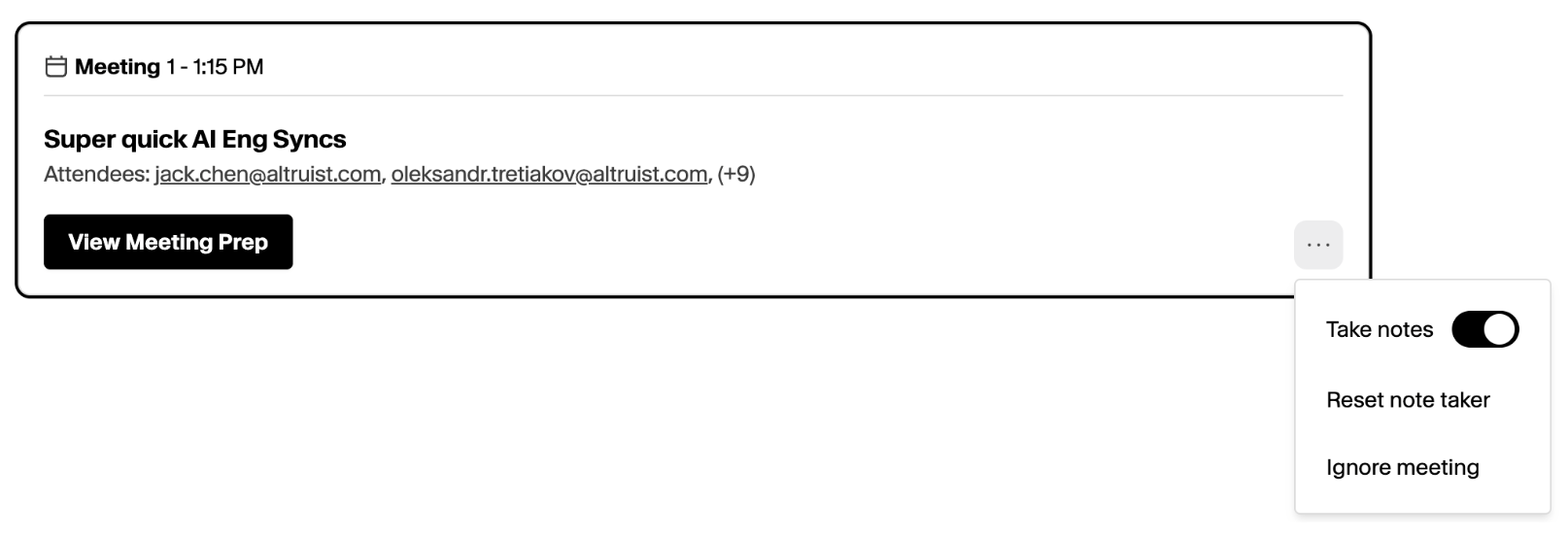
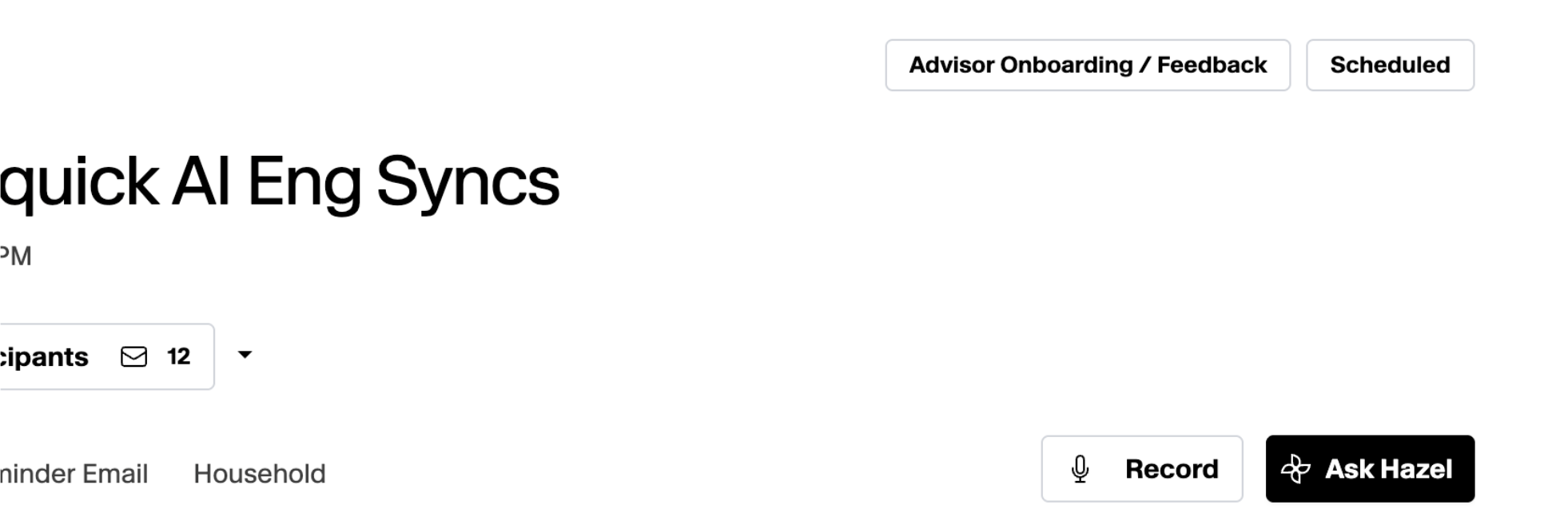
You can verify Hazel will join your online meetings by clicking on the menu icon for the particular meeting you’re curious about. If ‘Take Notes’ is on, then Hazel will join your meeting.
Recording a New Meeting That’s Not on Your Calendar
Recording a New Meeting That’s Not on Your Calendar
Navigate to the Meetings page, and select ‘New’ on the top right. Upon clicking it, you’ll have the option to enter the Meeting Name, and select whether it’s a Virtual Meeting or a Manual Recording.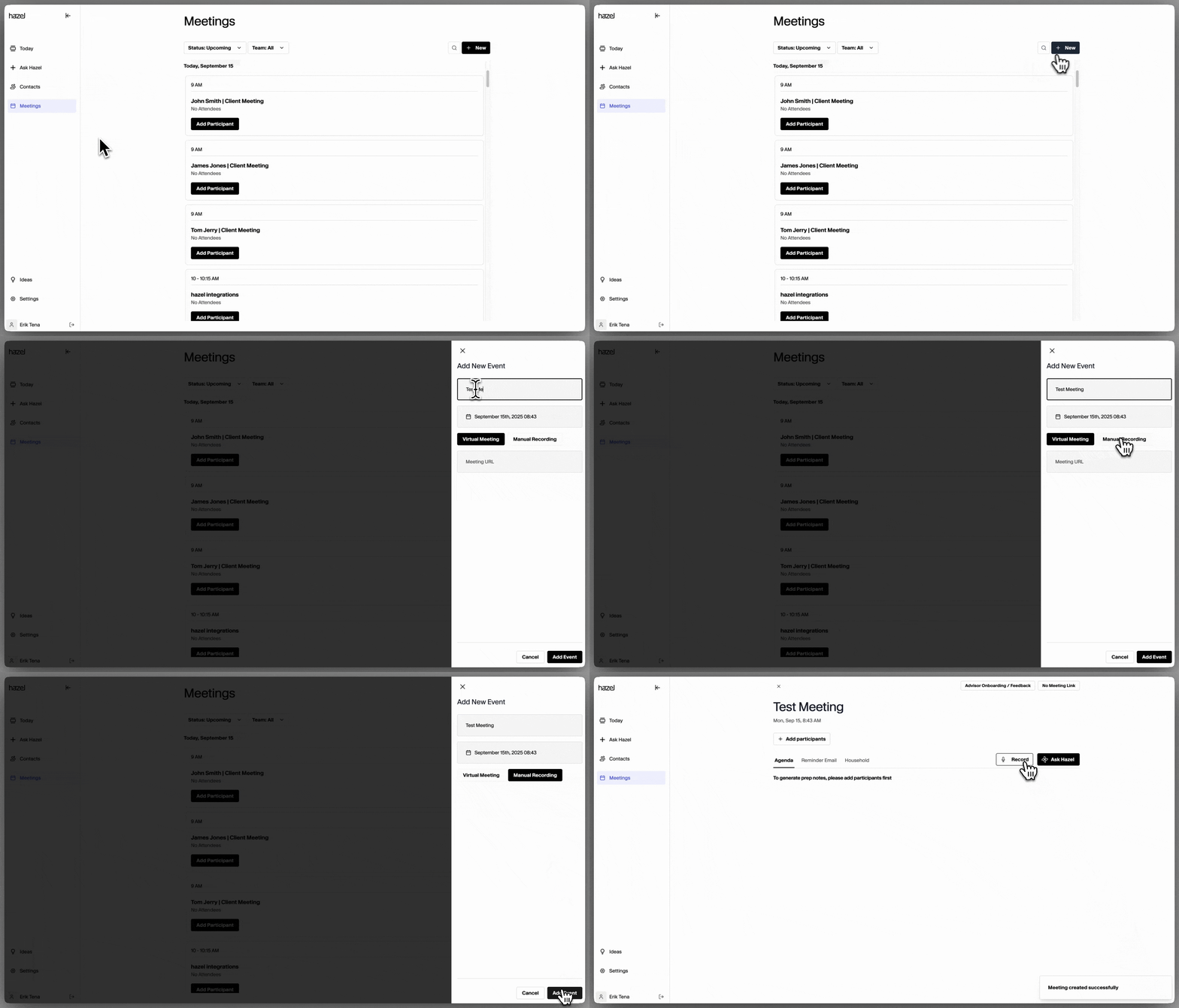
- If it’s a Virtual Meeting, enter your meeting url link and Hazel will join your call in less than a minute.
- If it’s an Manual Recording, proceed and start recording directly from your computer, or upload a media file (audio and video are both accepted).
Uploading Audio or Video Files
Uploading Audio or Video Files
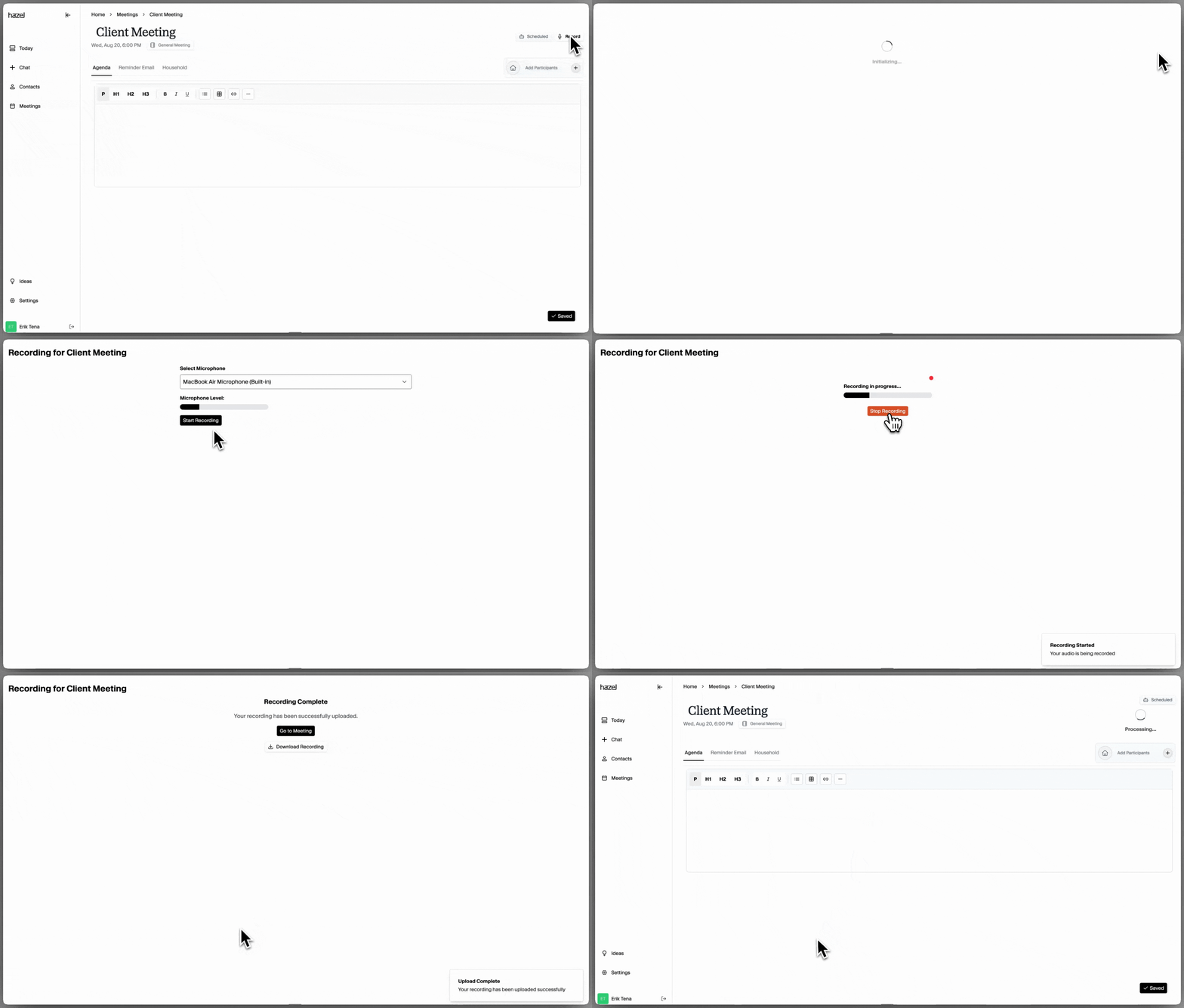
Navigate to the upcoming meeting, and select ‘Record’ on the top right. Upon clicking it, you’ll have the option to start recording directly from your computer, or upload a media file (audio and video are both accepted). Click on 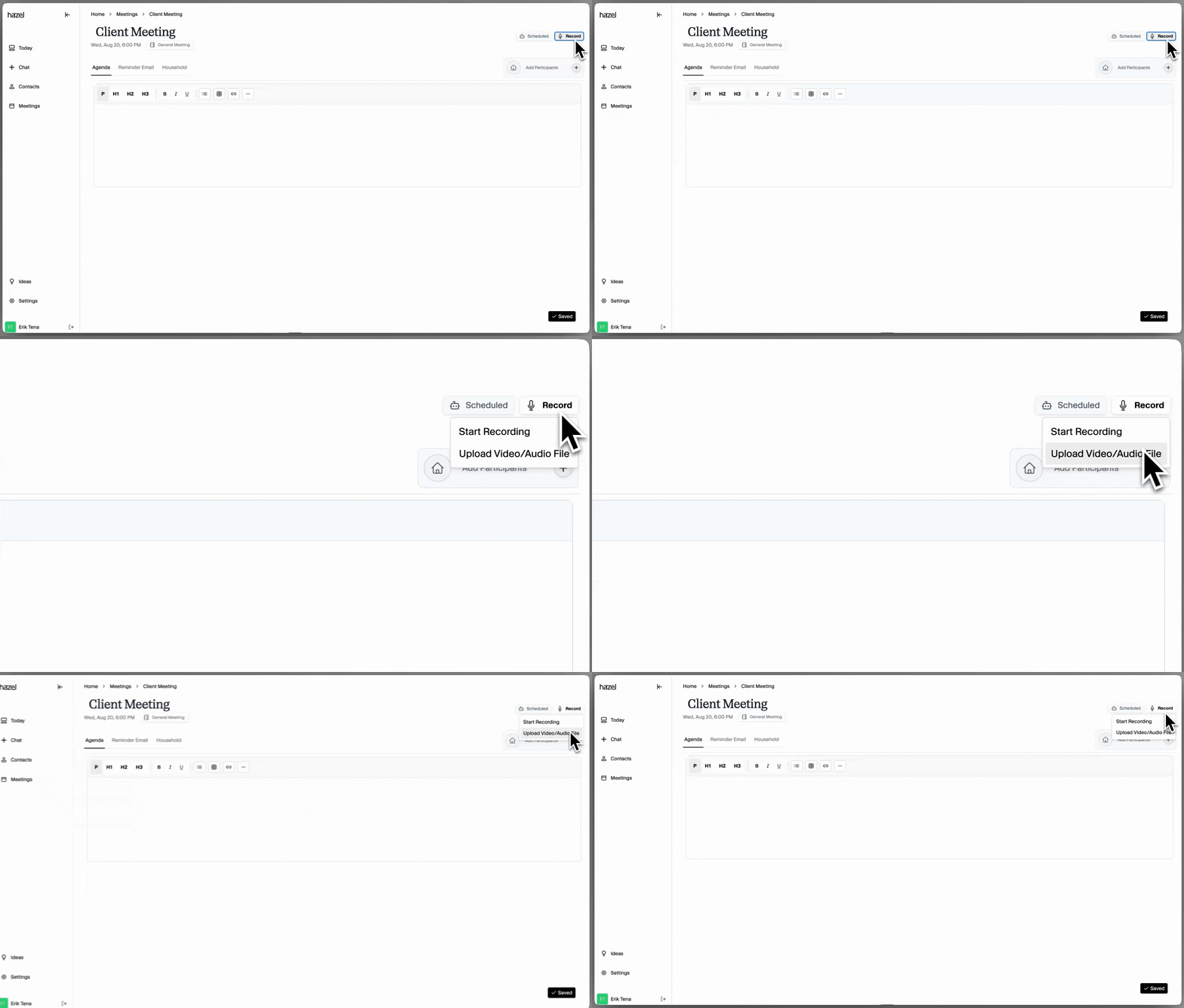
Upload Audio/Video FileIn Person Meetings
Recording an In Person Meeting on Your Browser
Recording an In Person Meeting on Your Browser
Navigate to the upcoming meeting, and select ‘Record’ on the top right. Upon clicking it, you’ll have the option to start recording directly from your computer, or upload a media file (audio and video are both accepted)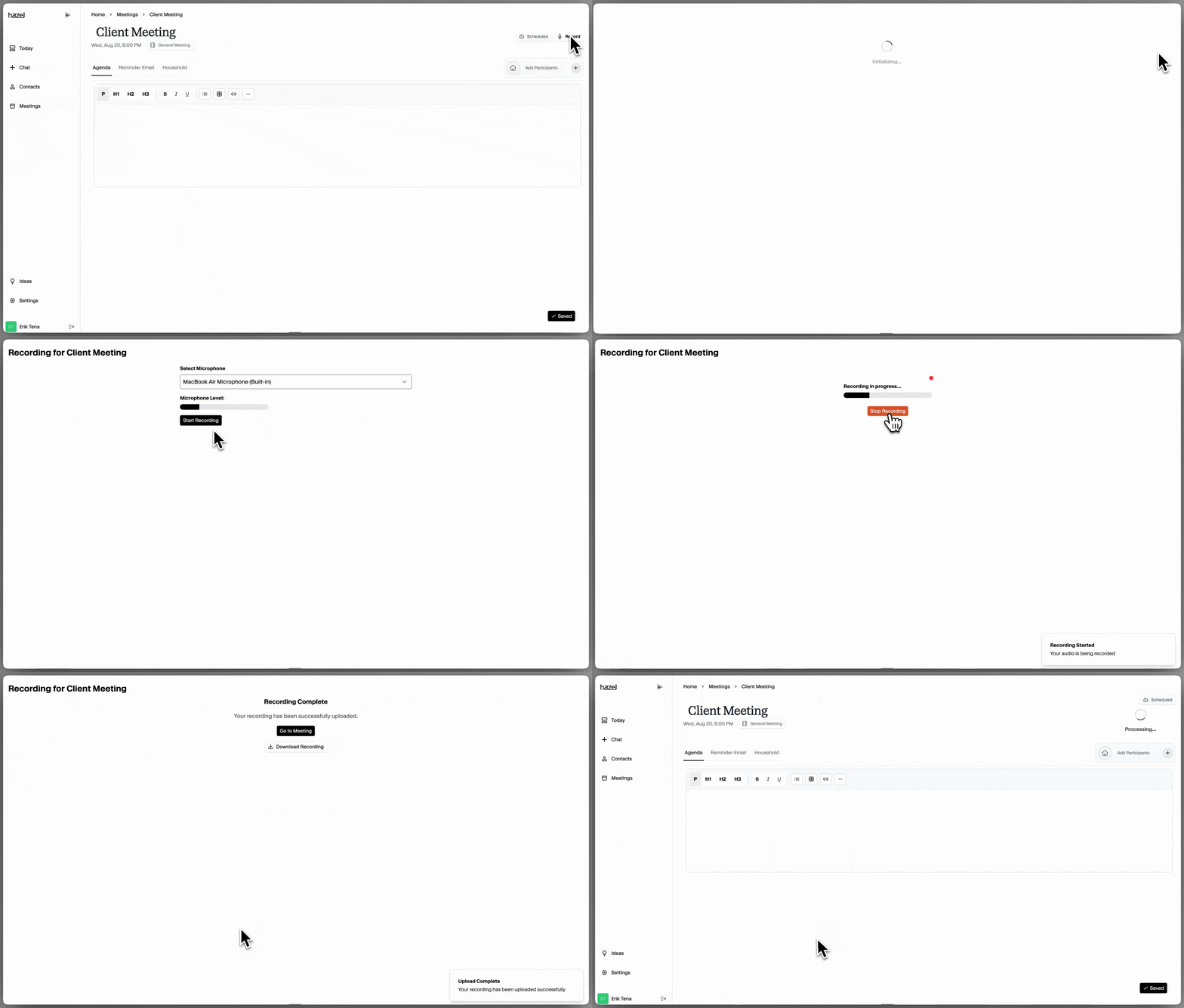
Recording In Person Meeting on Your iOS Device
Recording In Person Meeting on Your iOS Device
- Download the hazel.ai app from the App Store.
- Sign in to your Hazel account
- Select the meeting you would like to start recording or create a new meeting
Phone Calls
Hazel can record a phone call two ways. If the call isn’t already a meeting in Hazel, call your own Hazel line and merge your client in. If the meeting already exists in Hazel, use Join my call and Hazel will call you.Recording on Your Hazel Line
Recording on Your Hazel Line
Hazel gives you a personal phone number. Call it, merge your client in, and Hazel records both sides. No calendar event needed.Recording a call
- Dial your Hazel number. From one of your allowed numbers, call your Hazel line. Hazel answers and plays a short announcement that the call is being recorded.
- Merge your client into the call. Use your phone’s Add Call and **Merge Calls **controls to dial your client and merge them in. Both sides are now captured. If you’re already on with your client, add Hazel to that call instead and merge.
- Hang up when you’re done. Hazel stops recording when the call ends, so there’s no button to press. A new meeting appears on your Meetings page named for the number you called from and the time, for example “Phone call: (415) 555-0123 on Aug 3, 2026 2:15 PM”. Notes and tasks are generated the same way as any other Hazel recording.
Tip: Phone-call meetings start with no client attached. Open the meeting and use Add Participants to link the client so the meeting is tied to the right household and your notes sync to your CRM.
Recording a Phone Call with Join My Call
Recording a Phone Call with Join My Call
Use this when the meeting already exists in Hazel and you want the recording attached to it.
Hazel calls your phone and you merge it into the call you’re already on.
Hazel calls your phone and you merge it into the call you’re already on.
- Open the meeting and choose Join my call. On the meeting page, click Record in the top right, then choose Join my call.
- Enter the number for Hazel to call. Usually your own cell, the phone you’re on the call with. Include the country code, for example
+14155550123. - Answer, then merge. Hazel calls you within a few seconds and rings for about 30 seconds. Answer it and tap Merge Calls on your phone. The dialog reads “Recording” once Hazel is capturing the conversation.
- Hang up when you’re done. The recording attaches to this meeting, and notes appear on it shortly after.
Recording from Your Browser on Speakerphone
Recording from Your Browser on Speakerphone
You can record phone calls by recording from your computer and having your phone on speaker so both voices are captured by Hazel. To do so:Navigate to the upcoming meeting, and select ‘Record’ on the top right. Upon clicking it, you’ll have the option to start recording directly from your computer.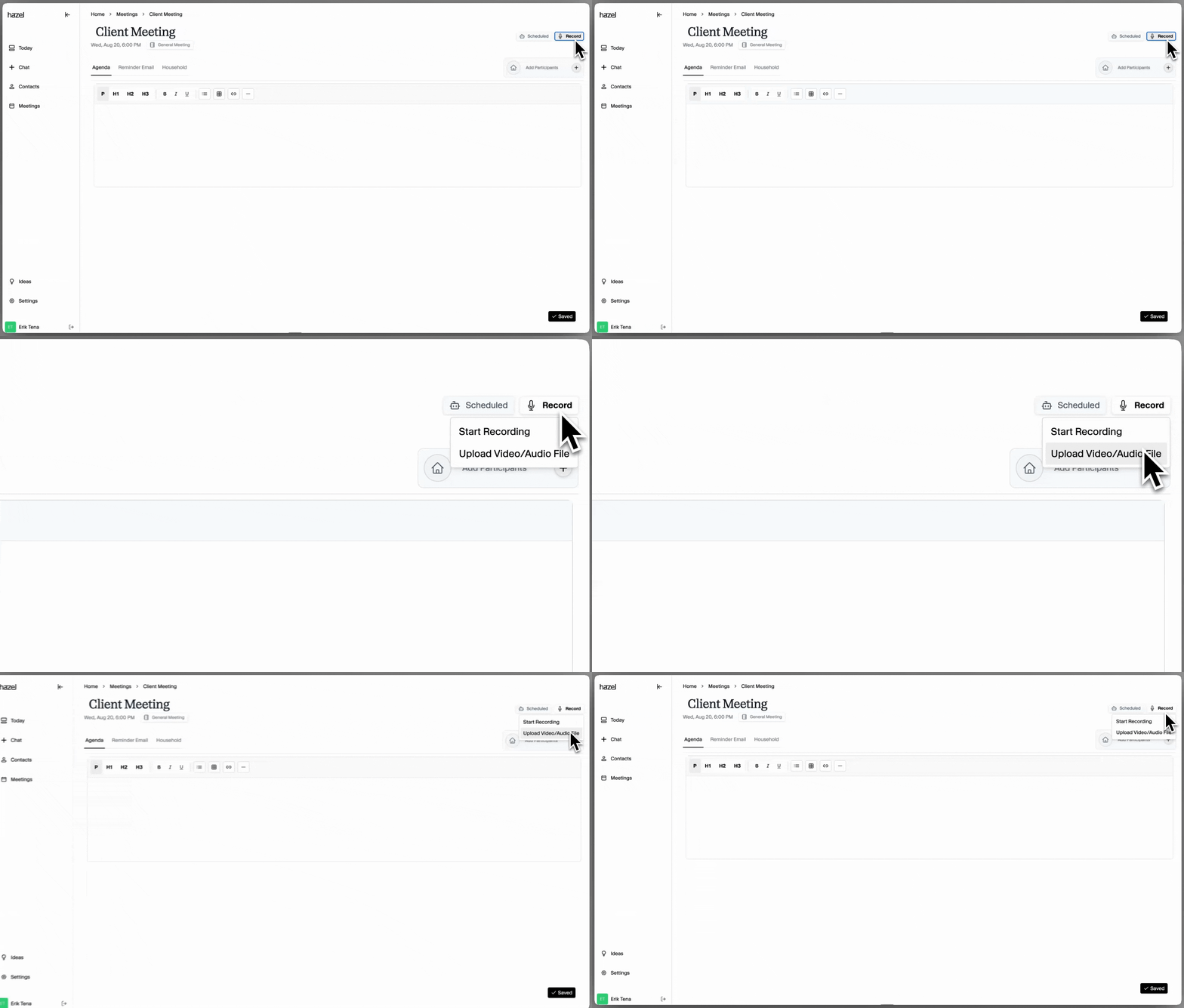
Disabling / Enabling Auto-scheduled Notetakers
Option 1: Disable Notetaker On All Calendar Events
Option 1: Disable Notetaker On All Calendar Events
Hazel automatically adds notetakers to new calendar events by default. If you would like to disable this option, you can do so within Settings → Meeting Settings. Be aware that disabling will cancel all your existing auto-scheduled notetakers for future meetings.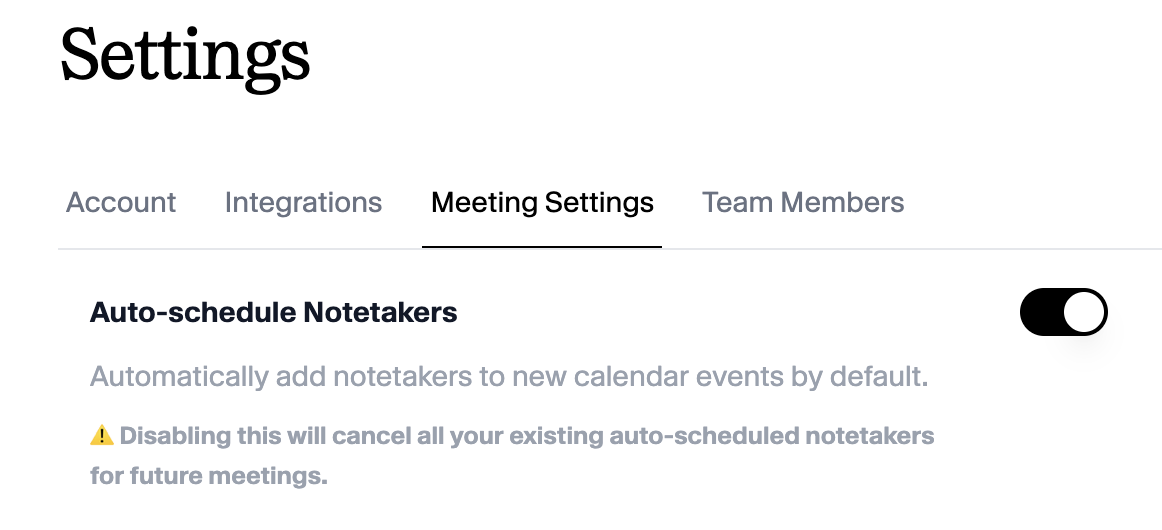
Option 2: Disable Notetaker Individually
Option 2: Disable Notetaker Individually
When in the Overview or Meetings view, there is an option to disable the notetaker one a one-off basis. Click on the menu icon for the meeting and toggle off ‘Take notes’.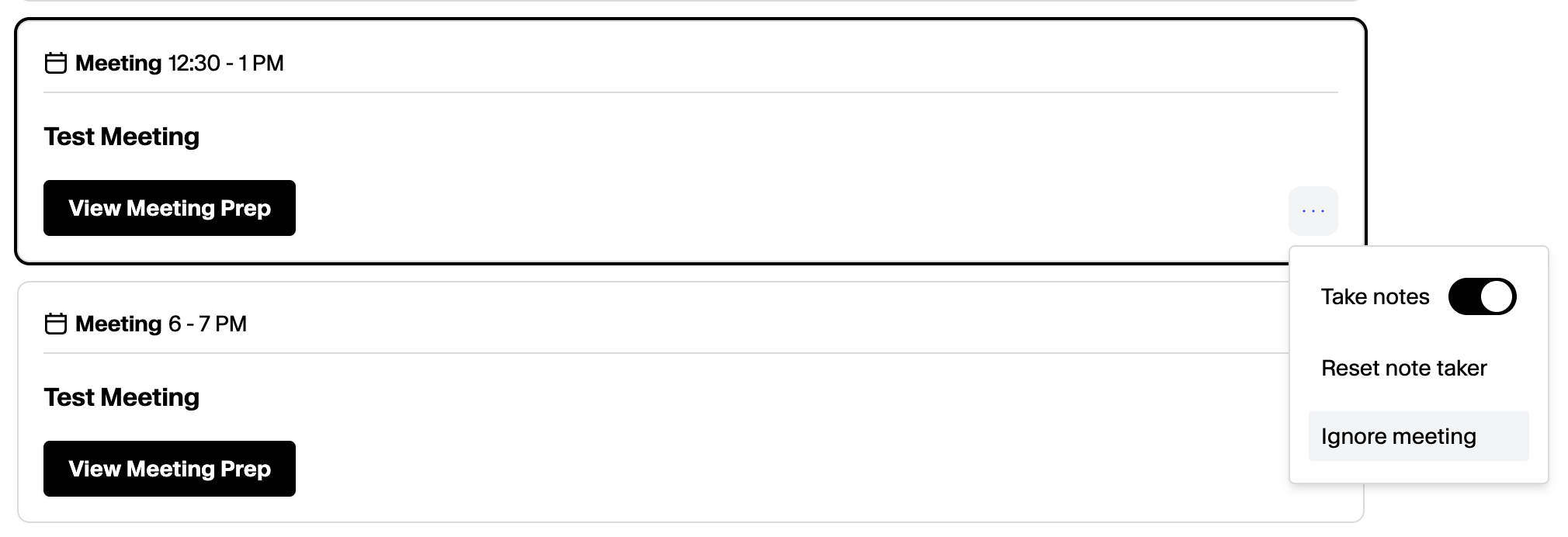
Downloading a Video Recording
Downloading a Video Recording
Downloading a Video Recording
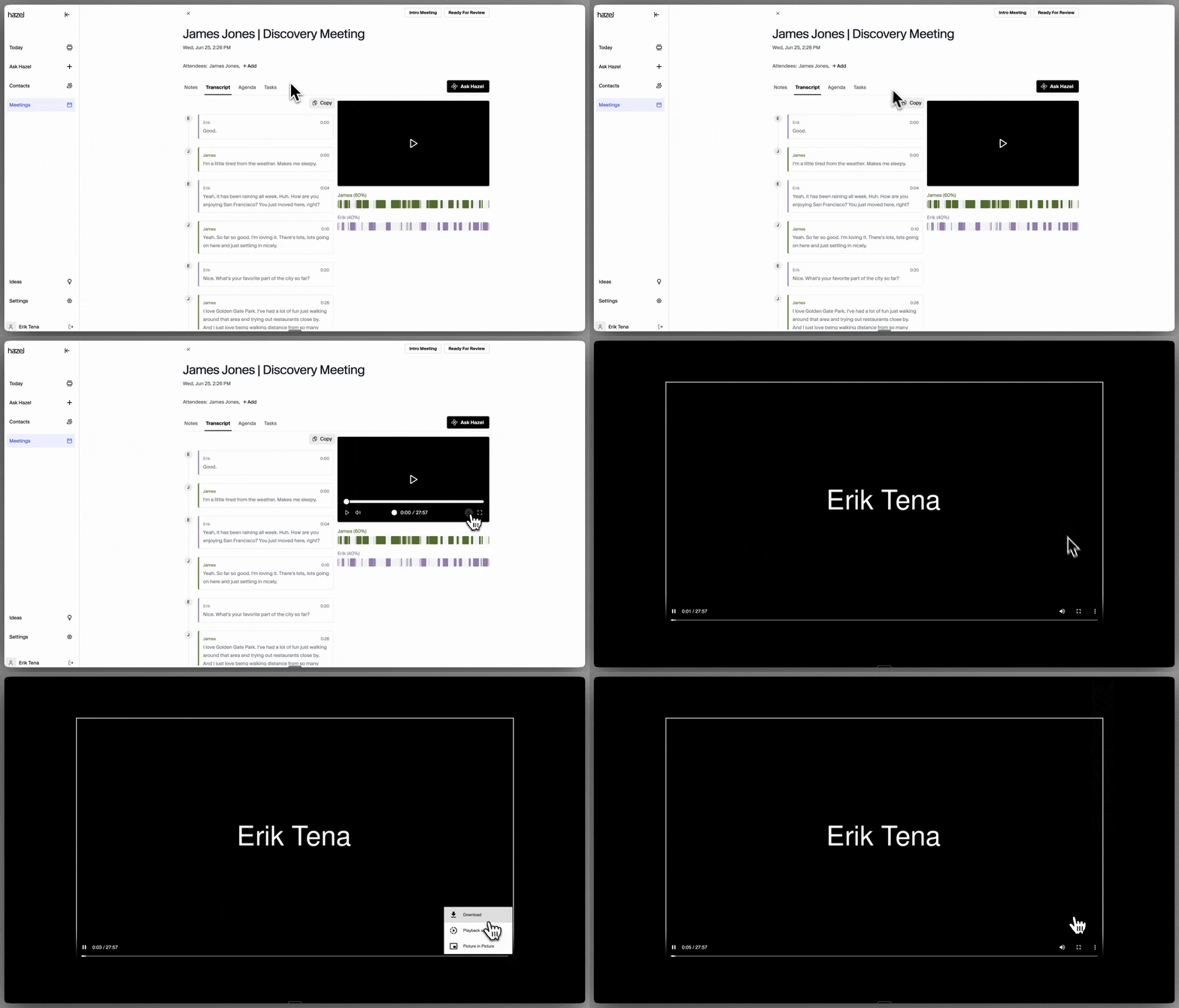
You can download a Video Recording within the Transcript section of a call if you have ‘Save Video’ turned on in Settings. If you would like to disable this option, you can do so within Settings → Meeting Settings. To download the Video Recording, go to the Meeting you would like to download, and select the Download icon. This will open the video in a new tab. In the new tab, select Download and wait for the video to download on to your device.