

What Are Modes?
Modes are a specialized version of Ask Hazel, designed to help you work through complex, focused tasks with greater consistency and clarity. Ask Hazel is our general-purpose chat experience. It uses Hazel’s AI engine to access your connected data and advanced language models so you can analyze information, explore scenarios, and get work done through conversation. Modes build on that foundation by adding structure and intent. Instead of starting from a blank chat every time, a Mode lets you define how Hazel should behave for a specific type of work. By combining clear instructions and background knowledge, Modes help Hazel stay focused on what you’re trying to accomplish—without requiring you to repeat or refine prompts over and over.How Modes Work
Modes use the same AI engine as Ask Hazel, but with additional guidance that shapes how Hazel thinks and responds.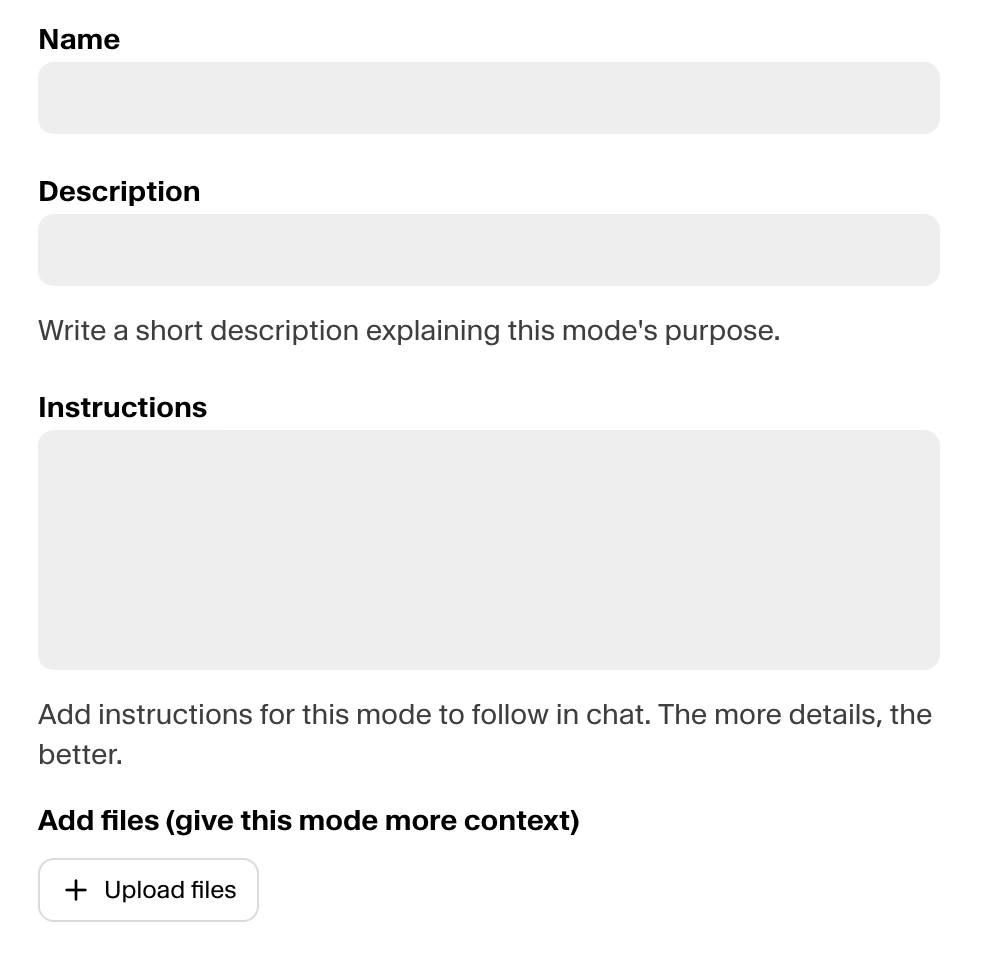
- Description – what the Mode is designed to help with
- Instructions – how Hazel should approach problems and respond
- Knowledge – files, links, or documents that provide background context
- Has access to all data you’ve connected (CRM, email, calendar, meeting notes, custodial data)
- Automatically uses relevant data when needed to answer your questions
- Applies the Mode’s instructions and knowledge to stay focused and consistent
What Makes Modes Different from Ask Hazel
Ask Hazel is flexible and open-ended. Modes are purpose-built. Modes are designed for deeper, more advanced work and unlock capabilities that aren’t available in a regular Ask Hazel chat, including:- Multi-step reasoning that chains analysis together in a single conversation
- Generative interfaces that present information visually, not just as text
- Code execution for advanced calculations and analysis
- Structured outputs such as reports, summaries, and client-ready materials
Using Modes in Ask Hazel
Modes are selected before you start a chat.- When starting a conversation, you choose the Mode you want to use
- Each chat remains in the selected Mode for its entire duration
- By default, no Mode is selected—you intentionally choose one each time
- By default, every chat starts in Ask anything mode (shown as ‘Ask’). Switch to Tax Planning or a Custom Mode before you begin; the selected mode applies to that whole chat.
- Modes are available to all eligible users in your firm
- Ask anything is available to everyone; Custom Modes to all eligible firm users; Tax Planning is a paid add-on (or available during a trial) — without access you’ll see an ‘Upgrade’ badge and selecting it prompts a request rather than switching.
What Modes Can — and Cannot — Do
Modes are powerful, but they are designed to support thinking and analysis—not automation.Modes can:
- Analyze and visualize complex data
- Chain multiple steps of reasoning in one conversation
- Draft client communications and internal documents
- Produce downloadable files, including PDFs, DOCX, CSV, XLSX
Modes cannot:
- Take actions on your behalf
- Send emails or messages
- Schedule meetings, reminders, or tasks
- Update or write back to CRM or other systems
- Run workflows or background automations
- Remember past conversations
When to Use a Mode
Modes are best used when the work requires focus and structure. You should consider using a Mode when:- You want consistent outputs without rewriting prompts
- You want to share prompts with team members
- You’re working within a specialized domain, such as tax or investments