> ## Documentation Index
> Fetch the complete documentation index at: https://docs.hazel.ai/llms.txt
> Use this file to discover all available pages before exploring further.
# Owner / Admin Capabilities
### Inviting Team Members
 Hazel does not import existing roles and permissions from external data sources. Please review this before adding team members. [Learn more about editing household permissions.](/guides/settings/members/roles-and-permissions)
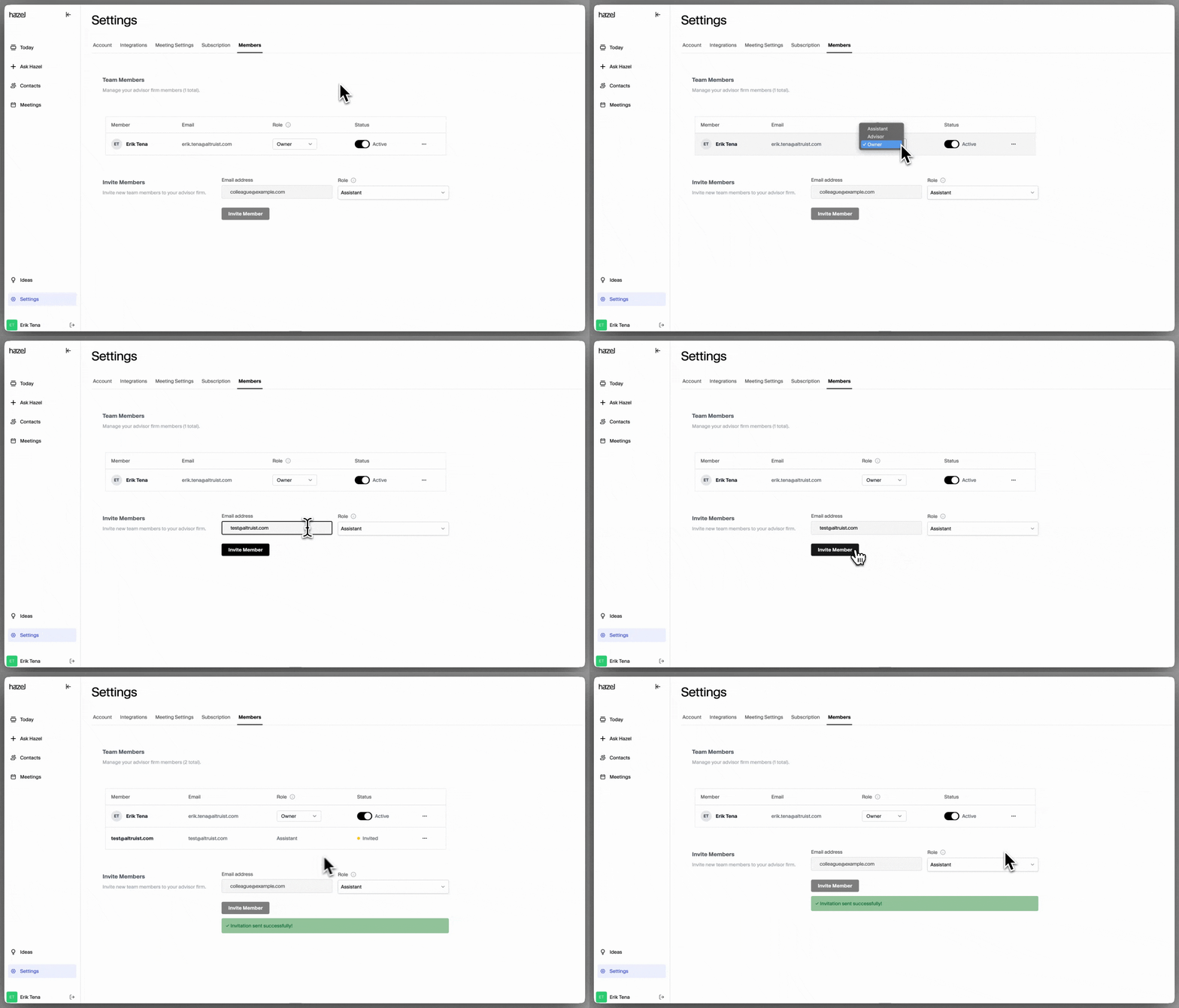
Hazel makes it easy to bring your team onboard. To invite a new member:
1. Go to Settings → Members.
2. Enter the team member’s email address.
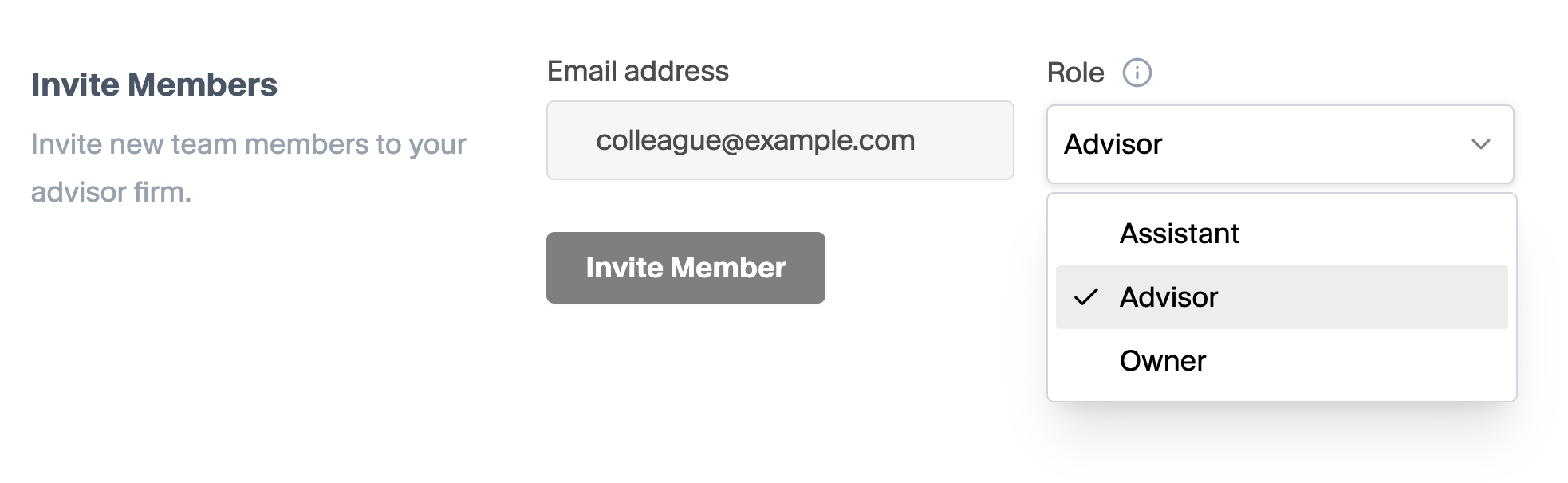
3. Select the appropriate role (Owner or Advisor).
4. Click Invite Member.
Hazel does not import existing roles and permissions from external data sources. Please review this before adding team members. [Learn more about editing household permissions.](/guides/settings/members/roles-and-permissions)
Hazel makes it easy to bring your team onboard. To invite a new member:
1. Go to Settings → Members.
2. Enter the team member’s email address.
3. Select the appropriate role (Owner or Advisor).
4. Click Invite Member.
 Your teammate will receive an email with instructions to join Hazel. Once they accept, they’ll have access according to the role you selected.
Only Owners can invite new members and manage roles.
### Editing Member Roles and Status
You can easily update roles, adjust member status, or manage pending invites from the Members table.
To make changes:
1. Go to Settings → Members.
2. Find the team member you’d like to update.
3. Use the action menu to:
* Change Role (Owner or Advisor)
* Set status to Active or Inactive
* Revoke Invite if the member has not yet joined

Changes take effect immediately and update the member’s permissions based on their role.
Only Owners can edit roles, manage status, or revoke invites.
### Editing Household Permissions
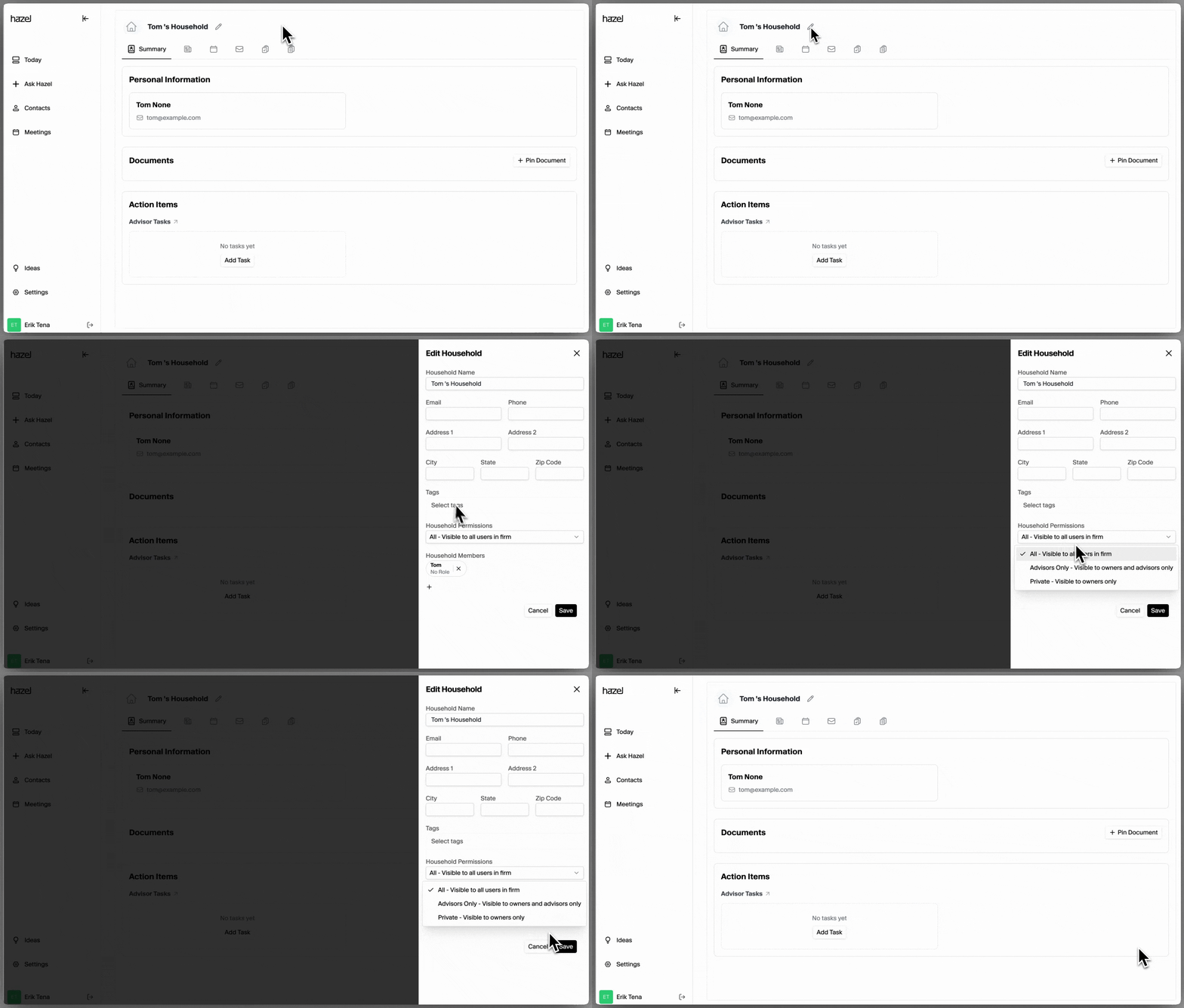
Hazel gives Owners control over who can see specific Households and their related client information.
To edit Household permissions:
Go to Contacts.
Select the Household you’d like to update.
Click the Edit icon next to the Household name.
Scroll down to the Household Permissions section.
Choose one of the following visibility options:
* All – Visible to all users in the firm
* Advisors – Visible only to Owners and Advisors
* Private – Visible only to Owners
Your teammate will receive an email with instructions to join Hazel. Once they accept, they’ll have access according to the role you selected.
Only Owners can invite new members and manage roles.
### Editing Member Roles and Status
You can easily update roles, adjust member status, or manage pending invites from the Members table.
To make changes:
1. Go to Settings → Members.
2. Find the team member you’d like to update.
3. Use the action menu to:
* Change Role (Owner or Advisor)
* Set status to Active or Inactive
* Revoke Invite if the member has not yet joined

Changes take effect immediately and update the member’s permissions based on their role.
Only Owners can edit roles, manage status, or revoke invites.
### Editing Household Permissions
Hazel gives Owners control over who can see specific Households and their related client information.
To edit Household permissions:
Go to Contacts.
Select the Household you’d like to update.
Click the Edit icon next to the Household name.
Scroll down to the Household Permissions section.
Choose one of the following visibility options:
* All – Visible to all users in the firm
* Advisors – Visible only to Owners and Advisors
* Private – Visible only to Owners