> ## Documentation Index
> Fetch the complete documentation index at: https://docs.hazel.ai/llms.txt
> Use this file to discover all available pages before exploring further.
# Meeting Settings
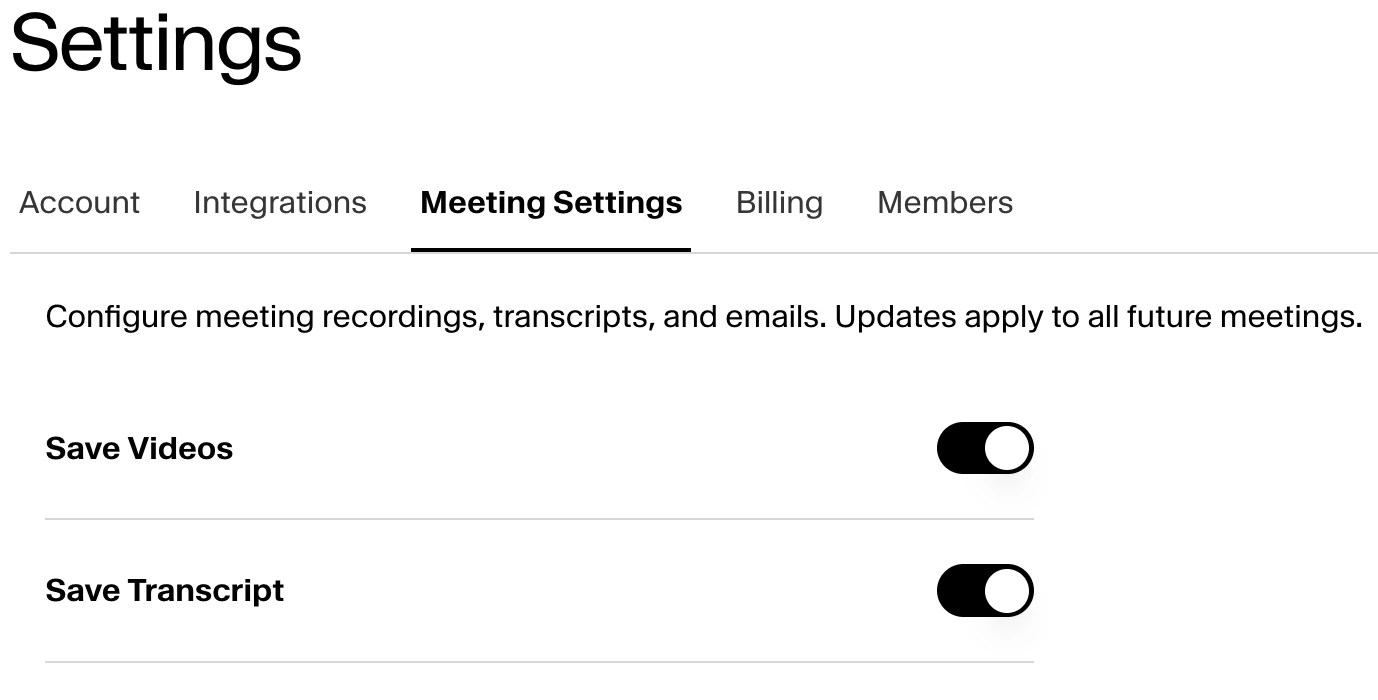
## Managing Save Videos and Transcripts
You can configure meeting recordings and transcripts in Settings / Meeting Settings. Videos and transcripts are saved by default. If Save Videos or Save Transcripts are toggled off, then updates will be applied to all future meetings.
 ## Auto-Schedule Notetakers
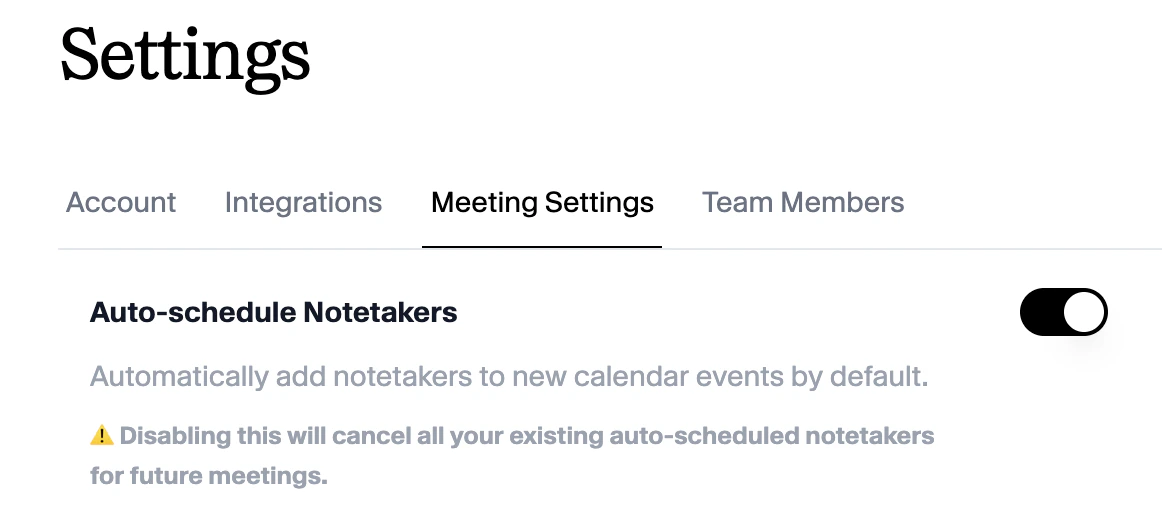
Notetakers are automatically added to new calendar events by default. You can disable Auto-schedule Notetakers by toggling off ‘Auto-schedule Notetakers’ in Settings / Meeting Settings. Disabling this will cancel all your existing auto-scheduled notetakers for future meetings.
## Auto-Schedule Notetakers
Notetakers are automatically added to new calendar events by default. You can disable Auto-schedule Notetakers by toggling off ‘Auto-schedule Notetakers’ in Settings / Meeting Settings. Disabling this will cancel all your existing auto-scheduled notetakers for future meetings.
 ## Updating the Notetaker’s Name
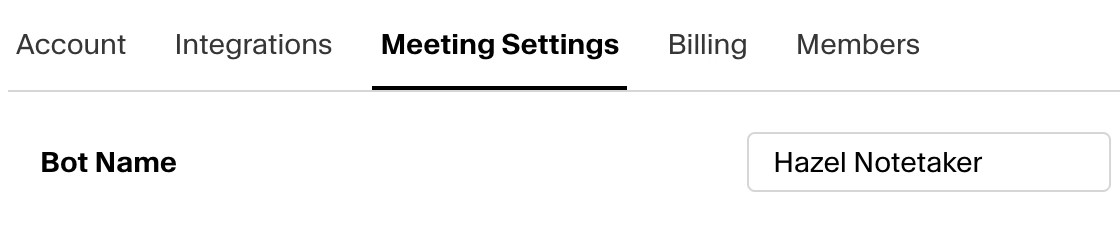
You can configure the name of the notetaker joining your meetings in Settings / Meeting Settings / Bot Name. By default, the notetaker will be names ‘Hazel Notetaker’. Any changes made will be applied to all future meetings.
## Updating the Notetaker’s Name
You can configure the name of the notetaker joining your meetings in Settings / Meeting Settings / Bot Name. By default, the notetaker will be names ‘Hazel Notetaker’. Any changes made will be applied to all future meetings.
 ## Adjusting the Scheduled Join Time
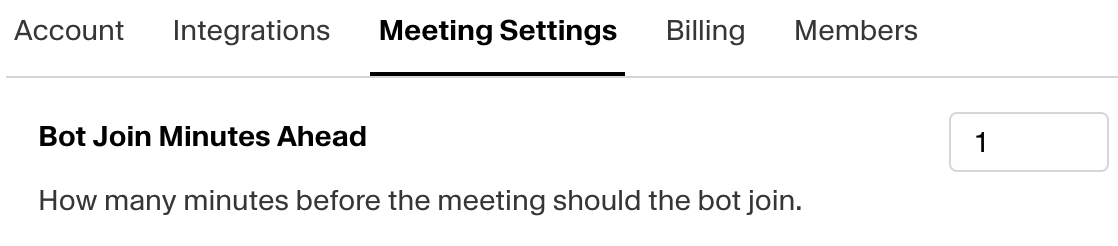
You can configure how many minutes before the meeting the bot should by adjusting in Settings / Meeting Settings / Bot Join Minutes Ahead. By default, the notetaker will join your meetings 1 minute ahead of the scheduled meeting time. You can adjust this as early as 10 minutes before the scheduled meeting time.
## Adjusting the Scheduled Join Time
You can configure how many minutes before the meeting the bot should by adjusting in Settings / Meeting Settings / Bot Join Minutes Ahead. By default, the notetaker will join your meetings 1 minute ahead of the scheduled meeting time. You can adjust this as early as 10 minutes before the scheduled meeting time.
 ## Meeting visibility
Meeting visibility controls **who at your firm can see a recorded meeting** — its transcript, notes, tasks, and summary. You set a firm-wide default here, and you (or the meeting's owner) can change it on any individual meeting.
## Meeting visibility
Meeting visibility controls **who at your firm can see a recorded meeting** — its transcript, notes, tasks, and summary. You set a firm-wide default here, and you (or the meeting's owner) can change it on any individual meeting.
 ### The four options
From most private to most open:
| Option | Who can see the meeting |
| :----------------- | :------------------------------------------------------------------------------------------------------------------------------------- |
| **Private** | Only you (the meeting's owner). *Your firm's Owners can always see it, too.* |
| **Attendees only** | You and the teammates who attended the meeting. |
| **Contact access** | Anyone at your firm who can already see this client — i.e., teammates with access to the meeting's household or contact. **(Default)** |
| **Everyone** | Every user at your firm. |
**Firm Owners always have access** to every meeting, regardless of the setting. So "Private" really means *only you and your firm's Owners*.
### Set your firm's default
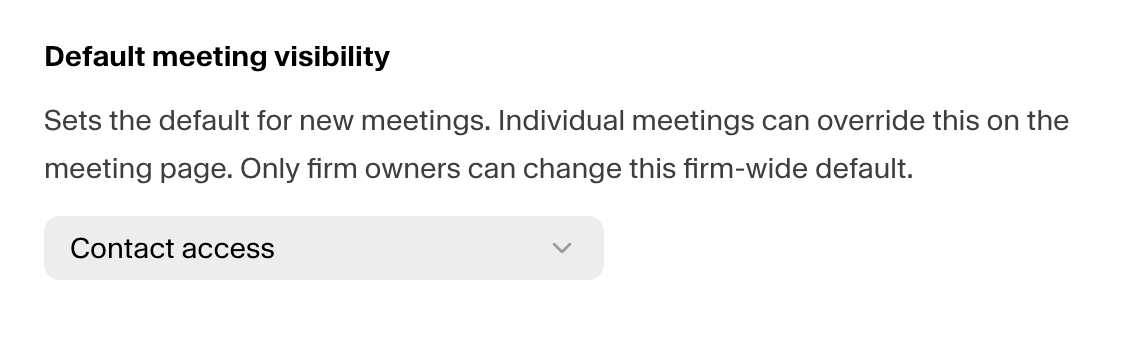
In **Meeting Settings**, choose the visibility that should apply to **every new meeting**. New meetings use this default automatically — most firms leave it on **Contact access** so meetings are visible to the same teammates who already work with that client. You can change the default at any time; it applies to meetings going forward.
### Change visibility for a single meeting
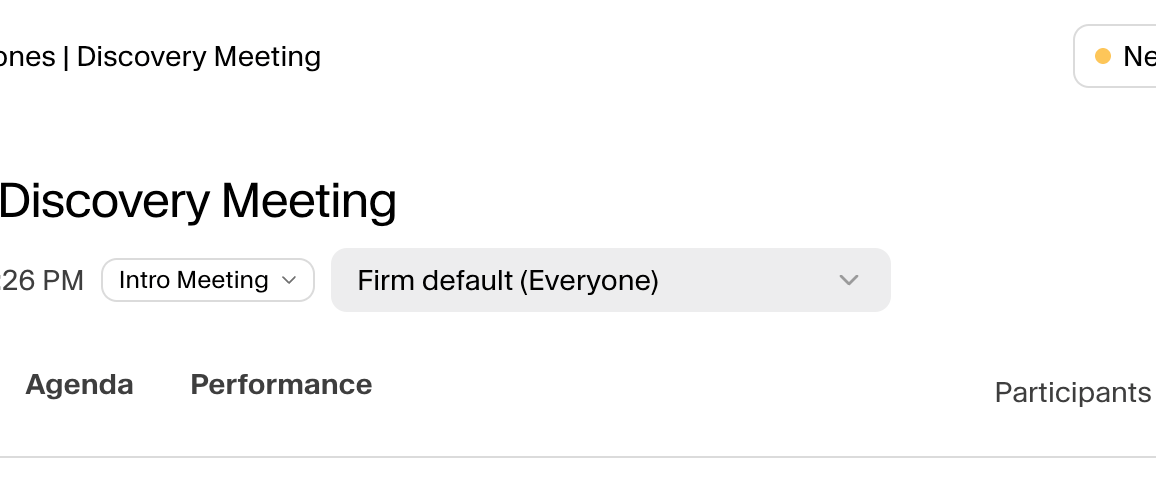
Open any meeting and use the **visibility selector** in the header to switch it to any of the four options — or set it back to your firm's default. The change takes effect immediately.
### The four options
From most private to most open:
| Option | Who can see the meeting |
| :----------------- | :------------------------------------------------------------------------------------------------------------------------------------- |
| **Private** | Only you (the meeting's owner). *Your firm's Owners can always see it, too.* |
| **Attendees only** | You and the teammates who attended the meeting. |
| **Contact access** | Anyone at your firm who can already see this client — i.e., teammates with access to the meeting's household or contact. **(Default)** |
| **Everyone** | Every user at your firm. |
**Firm Owners always have access** to every meeting, regardless of the setting. So "Private" really means *only you and your firm's Owners*.
### Set your firm's default
In **Meeting Settings**, choose the visibility that should apply to **every new meeting**. New meetings use this default automatically — most firms leave it on **Contact access** so meetings are visible to the same teammates who already work with that client. You can change the default at any time; it applies to meetings going forward.
### Change visibility for a single meeting
Open any meeting and use the **visibility selector** in the header to switch it to any of the four options — or set it back to your firm's default. The change takes effect immediately.
 Only the meeting's **owner**, an **advisor who attended** the meeting, or a **firm Owner** can change a meeting's visibility. Everyone else sees the current setting as read-only.
Notes:
* The option names and the "Private (firm owners can access)" caveat match the exact in-app wording, so the doc lines up with what users see.
* I led the table from most-private to most-open and flagged Contact access as the default (it's the firm default in the product).
* If your firm has meeting visibility turned off, the selector doesn't appear — say the word if you want a one-line note covering that edge case, though it's probably more detail than a help-center reader needs.
Only the meeting's **owner**, an **advisor who attended** the meeting, or a **firm Owner** can change a meeting's visibility. Everyone else sees the current setting as read-only.
Notes:
* The option names and the "Private (firm owners can access)" caveat match the exact in-app wording, so the doc lines up with what users see.
* I led the table from most-private to most-open and flagged Contact access as the default (it's the firm default in the product).
* If your firm has meeting visibility turned off, the selector doesn't appear — say the word if you want a one-line note covering that edge case, though it's probably more detail than a help-center reader needs.