> ## Documentation Index
> Fetch the complete documentation index at: https://docs.hazel.ai/llms.txt
> Use this file to discover all available pages before exploring further.
# Billing
Admin AI is the base seat and the Tax Planning add-on is billed per seat on top of the base seat. For more details on pricing, visit our [Pricing page](https://hazel.ai/pricing).
 ## Managing Subscriptions
Users with the ‘Owner’ or 'Admin' role can manage their firms Billing details and update credit card details within **Settings → Billing**. Here’s a breakdown on everything you need to manage your Hazel subscription:
### Add a Credit Card
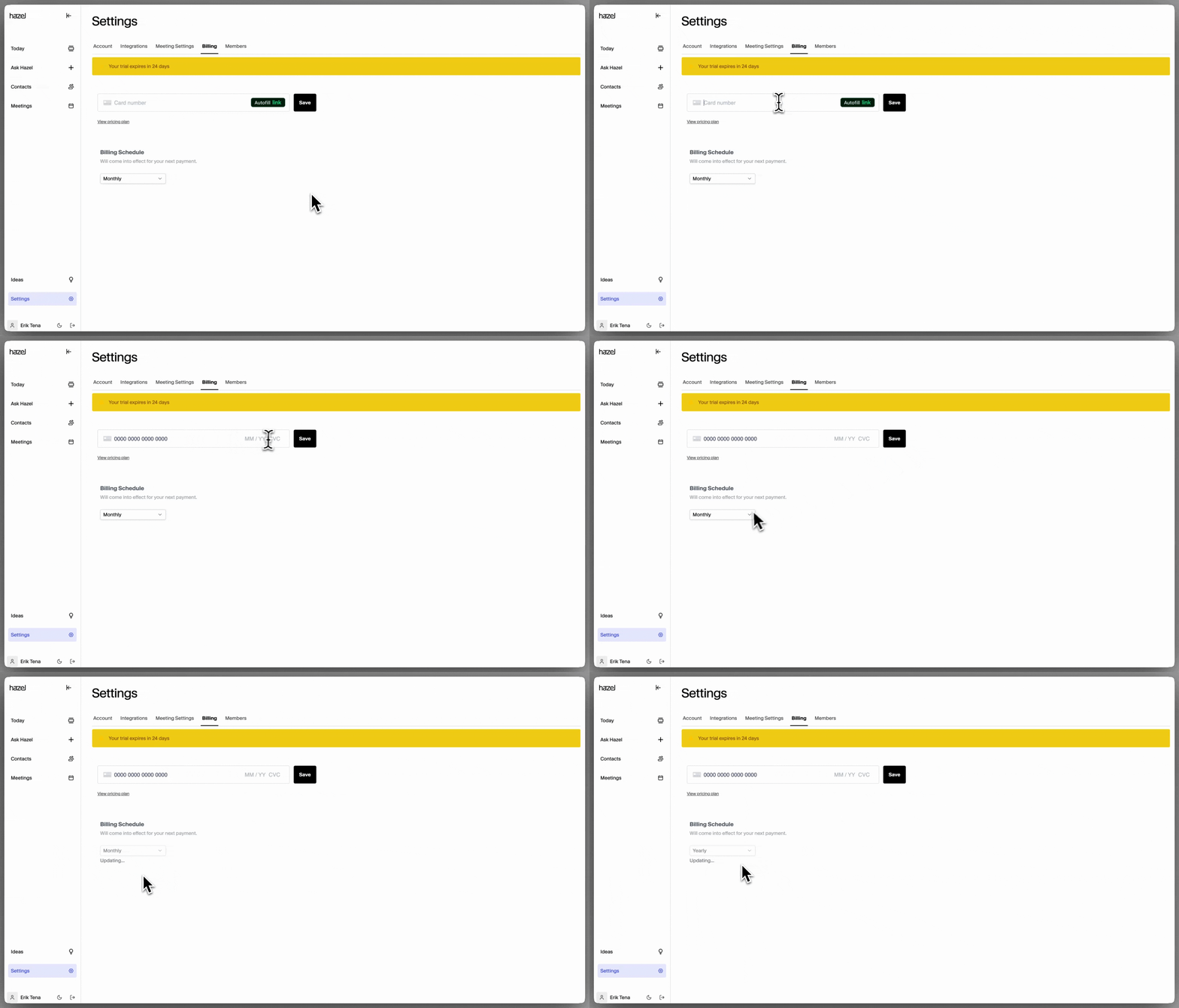
To add a credit card, go to **Settings → Billing**, then enter your credit card details or connect your [**Link**](https://link.com/) account. Once you click save, your subscription will be added and set to a **Monthly** billing cadence.
### Add new members to Subscriptions
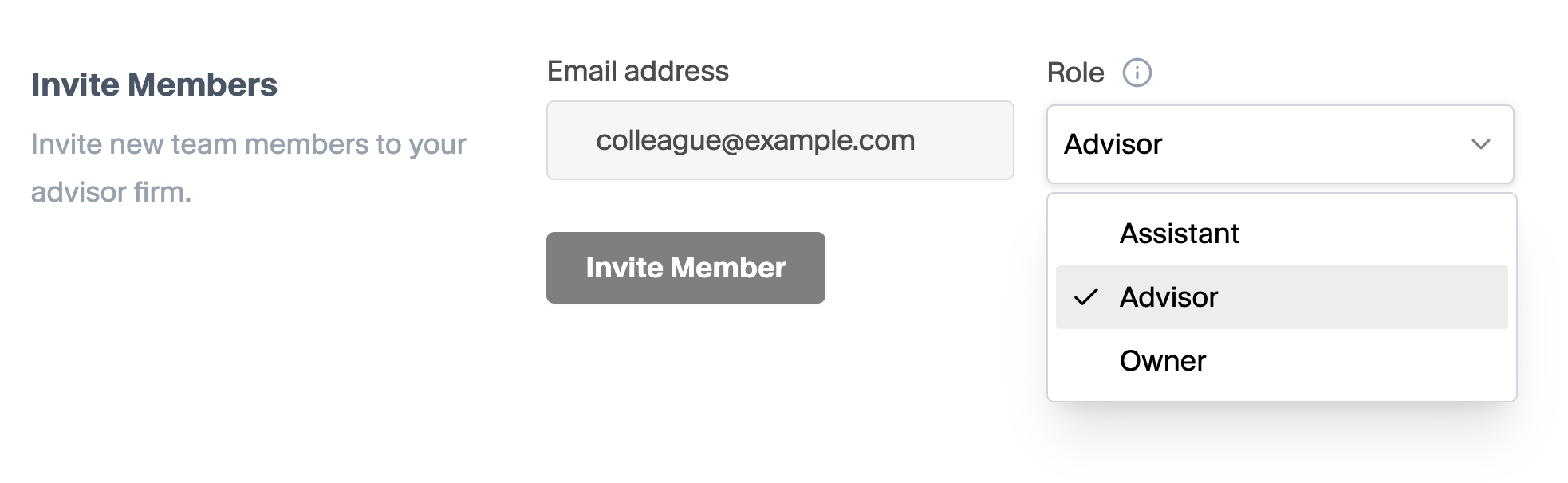
To add new subscriptions, simply go to the members page and add the desired members. Billing will be updated based on the role assigned to each active user.
## Managing Subscriptions
Users with the ‘Owner’ or 'Admin' role can manage their firms Billing details and update credit card details within **Settings → Billing**. Here’s a breakdown on everything you need to manage your Hazel subscription:
### Add a Credit Card
To add a credit card, go to **Settings → Billing**, then enter your credit card details or connect your [**Link**](https://link.com/) account. Once you click save, your subscription will be added and set to a **Monthly** billing cadence.
### Add new members to Subscriptions
To add new subscriptions, simply go to the members page and add the desired members. Billing will be updated based on the role assigned to each active user.
 ### Unsubscribe or Removing existing subscriptions
To unsubscribe or remove a seat from your billing schedule, reach out to [support@hazel.ai](mailto:support@hazel.ai).
Only ‘Owners’ and 'Admins' have the ability to manage existing members roles and permissions.
### Setting the Billing Schedule
### Unsubscribe or Removing existing subscriptions
To unsubscribe or remove a seat from your billing schedule, reach out to [support@hazel.ai](mailto:support@hazel.ai).
Only ‘Owners’ and 'Admins' have the ability to manage existing members roles and permissions.
### Setting the Billing Schedule
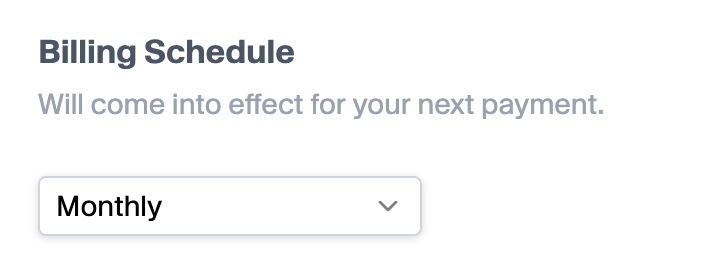 To adjust your billing schedule, select between our Monthly and Yearly options. Pricing will adjust accordingly.
Users save two months by paying annually instead of monthly.
To adjust your billing schedule, select between our Monthly and Yearly options. Pricing will adjust accordingly.
Users save two months by paying annually instead of monthly.