> ## Documentation Index
> Fetch the complete documentation index at: https://docs.hazel.ai/llms.txt
> Use this file to discover all available pages before exploring further.
# Set Yourself Up For Success
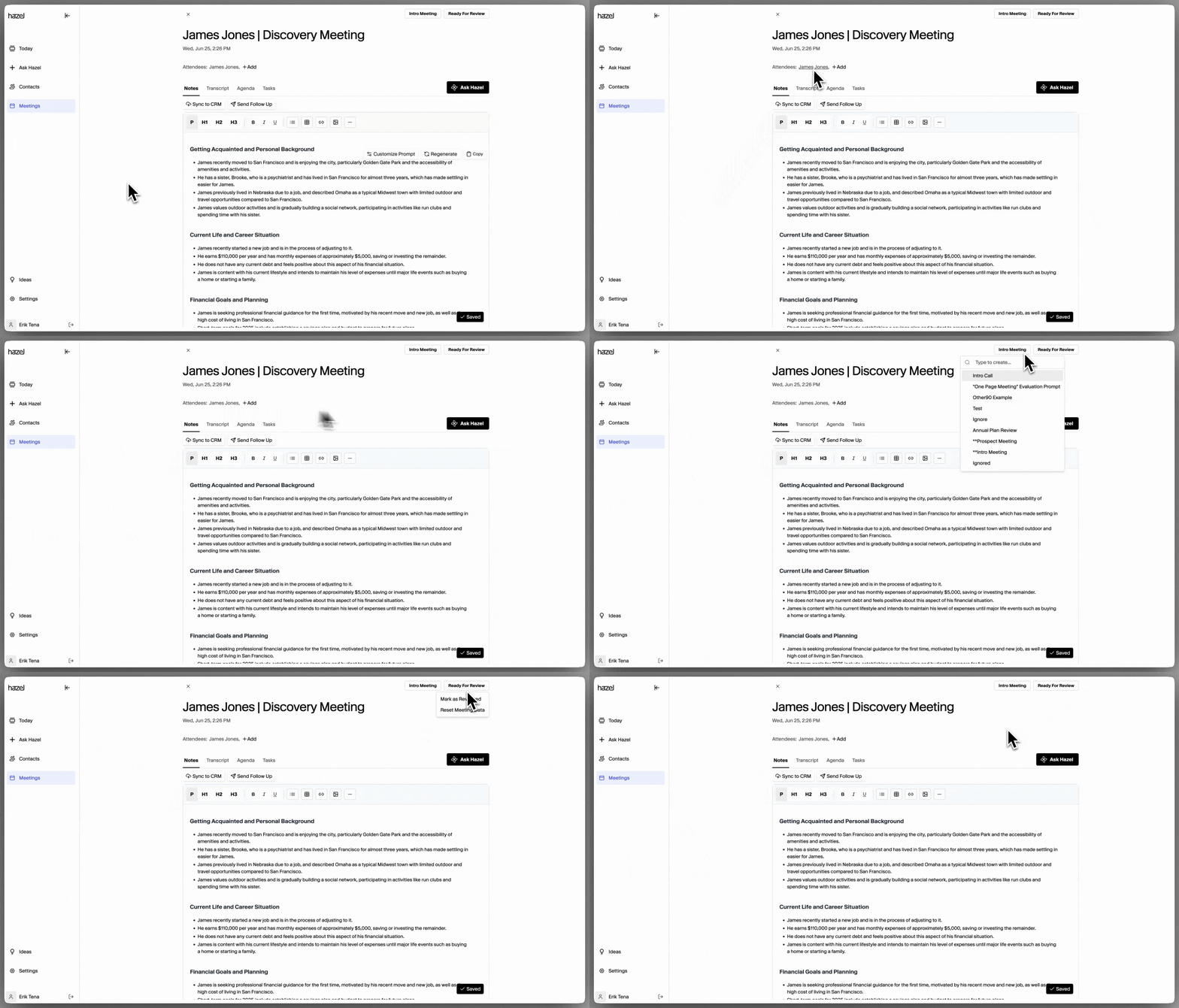 Follow these tips to get to most out of Hazel's Meeting Assistant.
* **Check attendees** – This ensures the meeting is associated with the correct household, unlocking the ability for other team members to view the meeting and associating that meeting to a Household so Ask Hazel can access it. This connection is super powerful for keeping conversations organized and accessible.
* **Select the meeting type** – There are five [default meeting types](/guides/meeting-assistant/meeting-details/meeting-types/default-meeting-types) available, each designed to provide different styles of notes. Choosing the right one ensures the notes are tailored to the type of meeting you’re running.
* **Meeting Status** – You can update the meeting status from **Ready For Review, Complete, or Reset Meeting Data.**
* **Ready For Review → Complete**: Stay organized by clearly showing what’s been finished and what’s still left to review.
* **Reset Meeting Data**: Doing this will reset the meeting complete. All data will be lost.
Follow these tips to get to most out of Hazel's Meeting Assistant.
* **Check attendees** – This ensures the meeting is associated with the correct household, unlocking the ability for other team members to view the meeting and associating that meeting to a Household so Ask Hazel can access it. This connection is super powerful for keeping conversations organized and accessible.
* **Select the meeting type** – There are five [default meeting types](/guides/meeting-assistant/meeting-details/meeting-types/default-meeting-types) available, each designed to provide different styles of notes. Choosing the right one ensures the notes are tailored to the type of meeting you’re running.
* **Meeting Status** – You can update the meeting status from **Ready For Review, Complete, or Reset Meeting Data.**
* **Ready For Review → Complete**: Stay organized by clearly showing what’s been finished and what’s still left to review.
* **Reset Meeting Data**: Doing this will reset the meeting complete. All data will be lost.