> ## Documentation Index
> Fetch the complete documentation index at: https://docs.hazel.ai/llms.txt
> Use this file to discover all available pages before exploring further.

# Setting up your Email

## Add An Email Signature

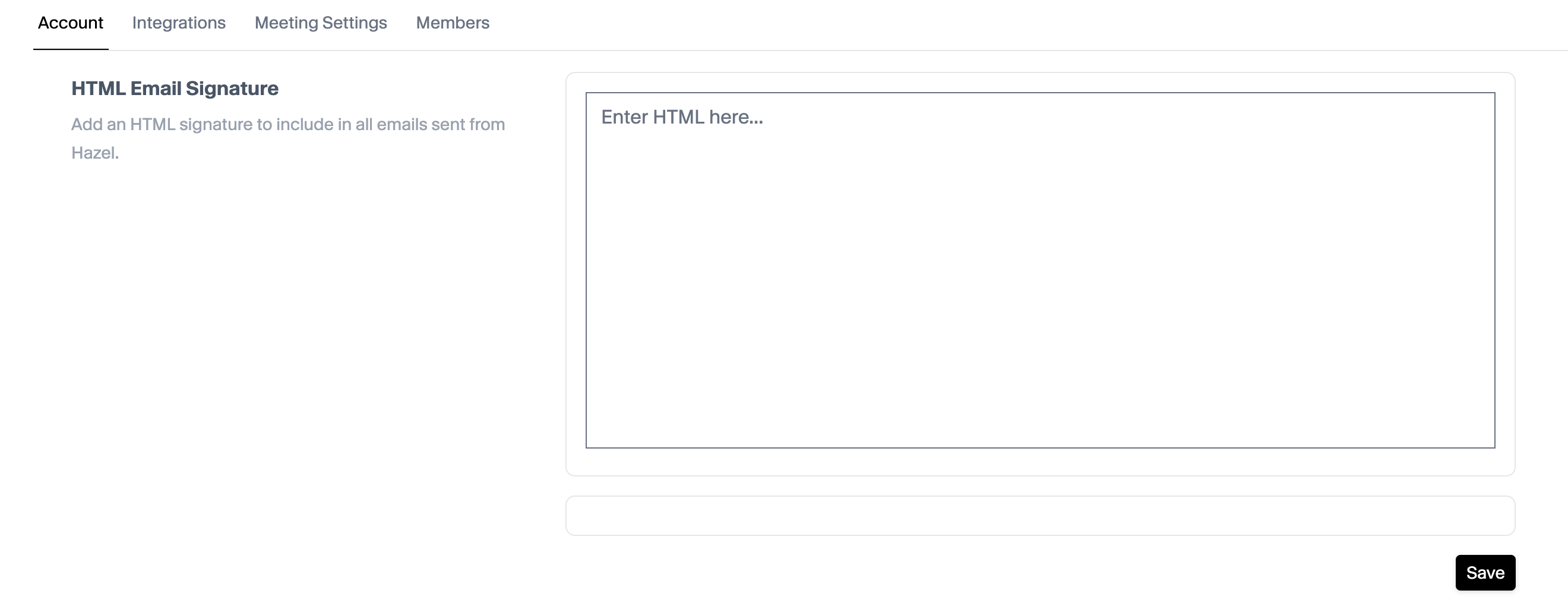
Head to Settings → Account
<Frame>
  <img src="https://mintcdn.com/altruist-2003df37/53R_TmRTQQgXFeCV/images/addemailsignature.png?fit=max&auto=format&n=53R_TmRTQQgXFeCV&q=85&s=0bc44e5648183c8347379b8f47f87cbe" alt="Addemailsignature" width="2640" height="1020" data-path="images/addemailsignature.png" />
</Frame>

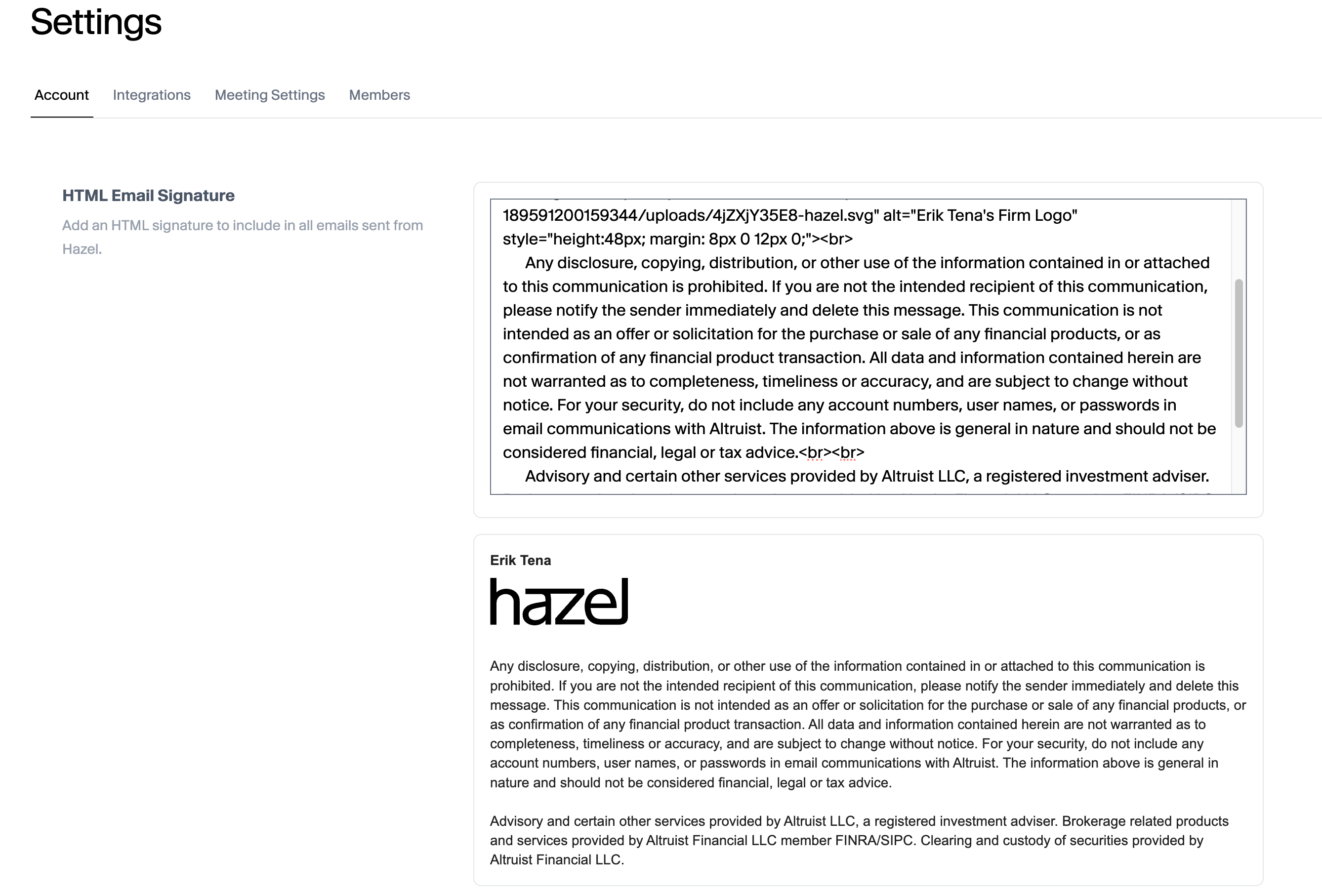
Scroll to HTML Email Signature and add your email signature.

### Turning your Email Signature into HTML text
<Frame>
  <img src="https://mintcdn.com/altruist-2003df37/53R_TmRTQQgXFeCV/images/emailhtmlchat0.png?fit=max&auto=format&n=53R_TmRTQQgXFeCV&q=85&s=b7f0222d1622da973f7b414ffa39097c" alt="Emailhtmlchat0" width="2650" height="1530" data-path="images/emailhtmlchat0.png" />
</Frame>

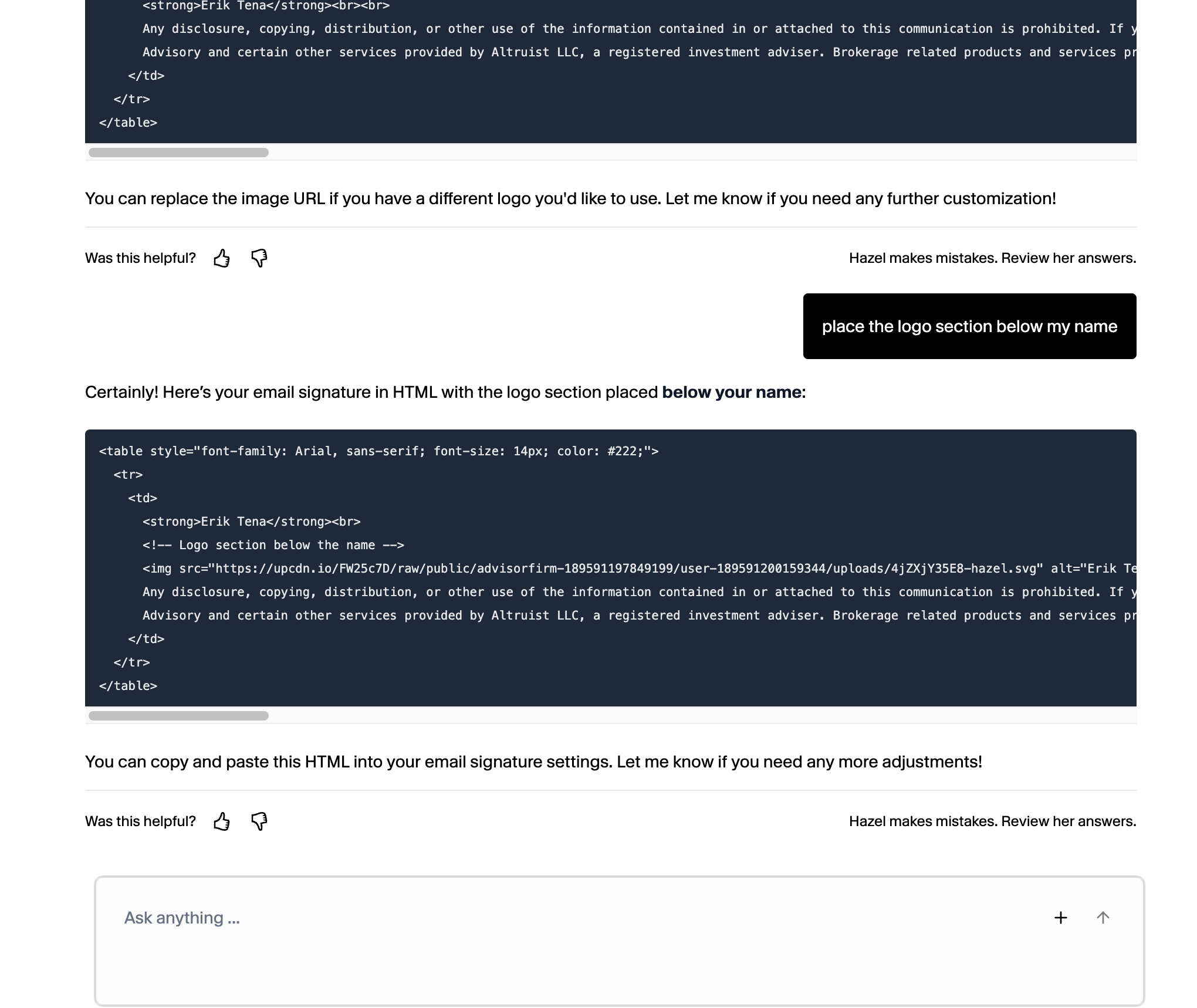
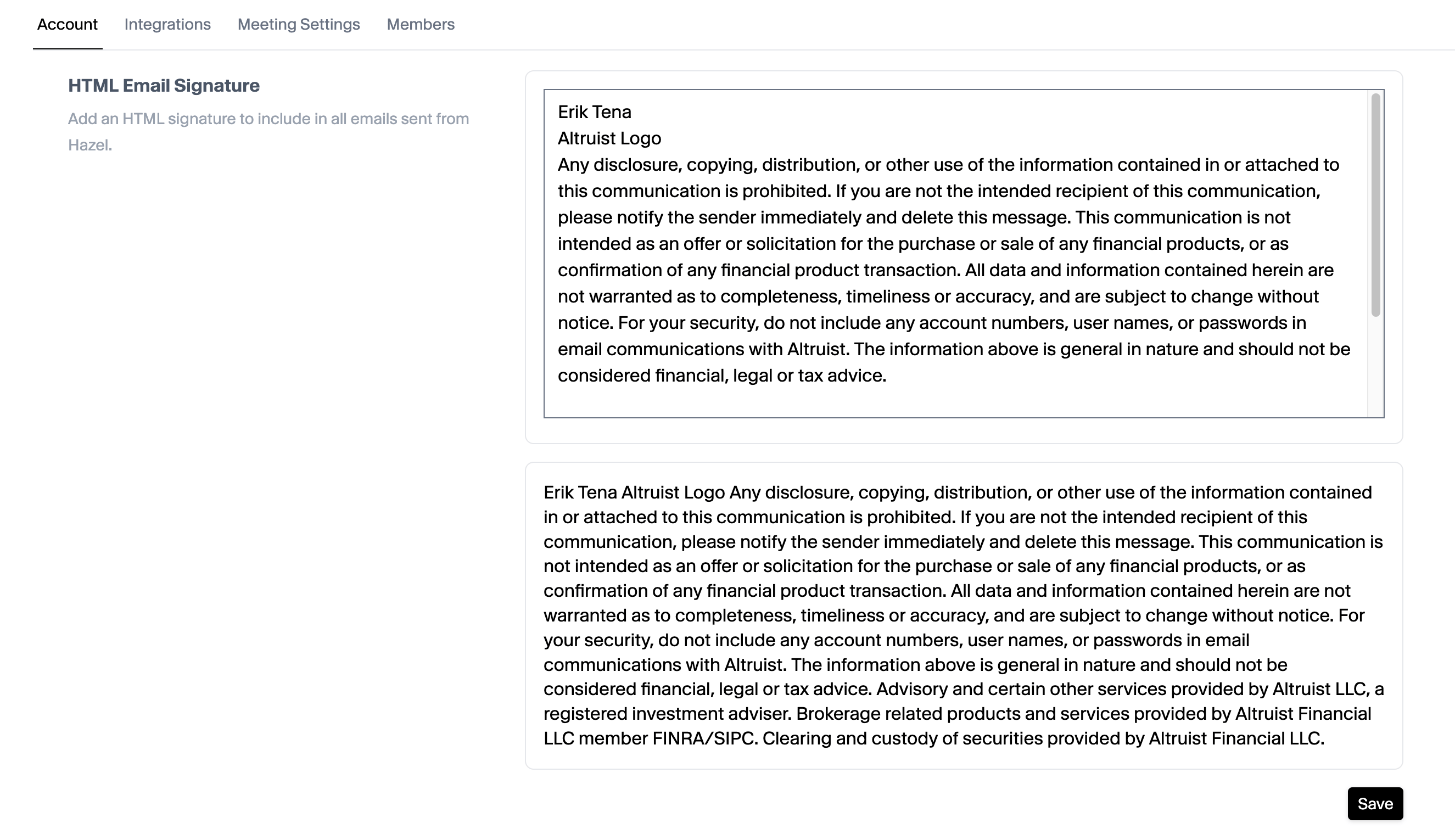
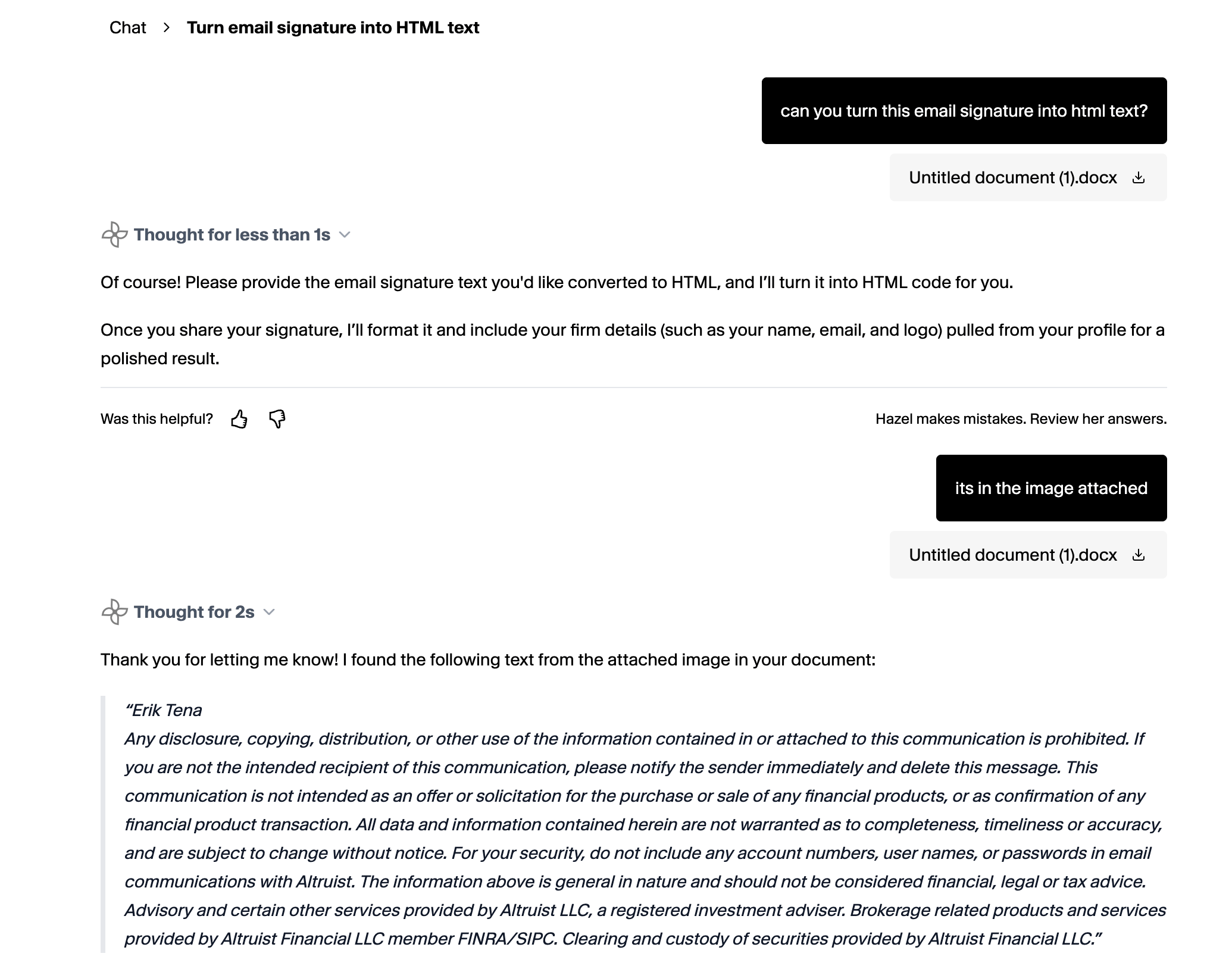
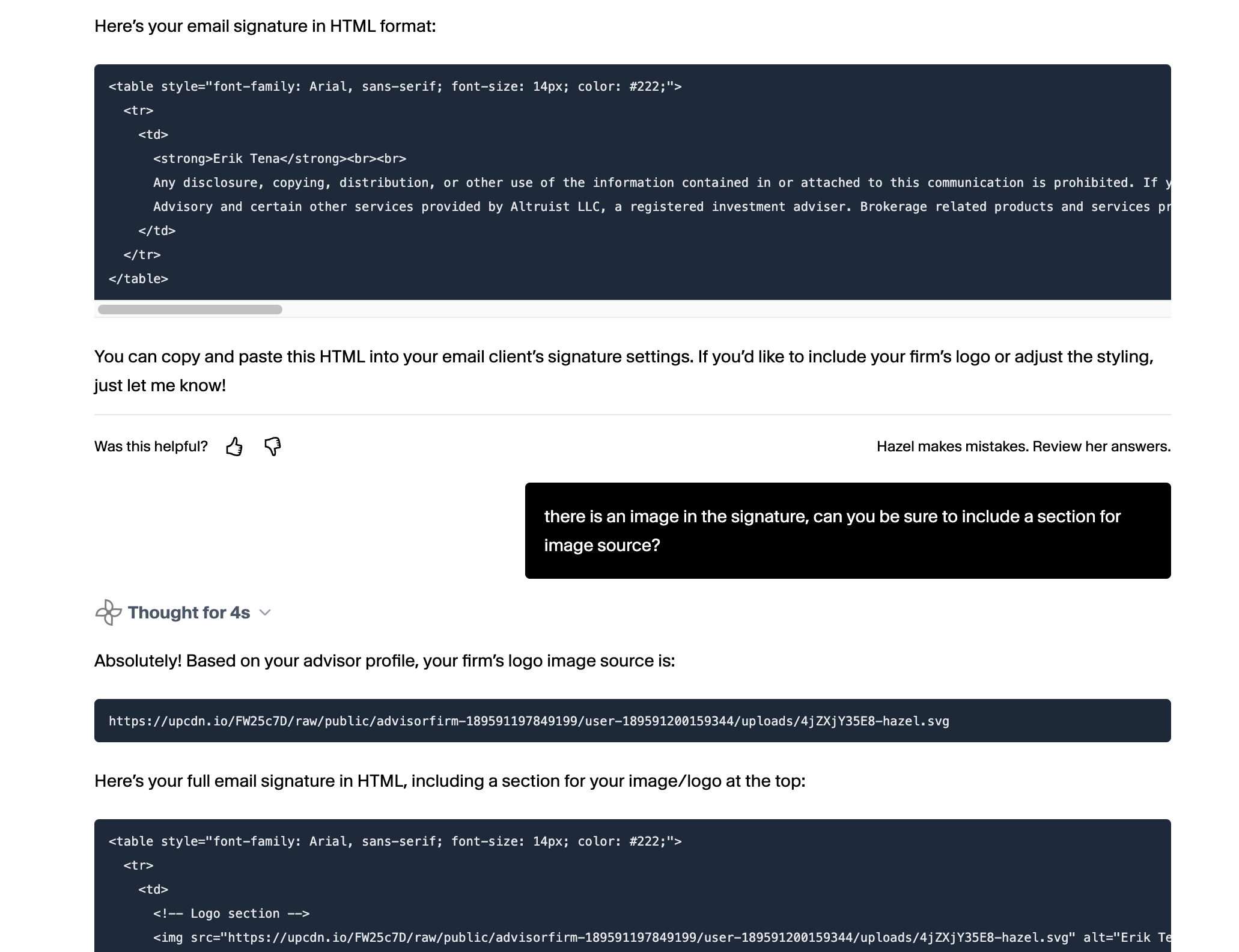
Is your email not copying over as it should? It’s likely because it’s not HTML text. You can leverage Hazel’s chat to turn your non-HTML signature into HTML text. Here’s how:

Copy your email signature + instructions into Hazel “turn the email signature in the image attached into HTML text”
<Frame>
  <img src="https://mintcdn.com/altruist-2003df37/53R_TmRTQQgXFeCV/images/emailhtmlchat1.png?fit=max&auto=format&n=53R_TmRTQQgXFeCV&q=85&s=95a56ea95639a11c325c1b62aec3342f" alt="Emailhtmlchat1" width="2070" height="1628" data-path="images/emailhtmlchat1.png" />

  <img src="https://mintcdn.com/altruist-2003df37/53R_TmRTQQgXFeCV/images/emailhtmlchat2.png?fit=max&auto=format&n=53R_TmRTQQgXFeCV&q=85&s=467be2d79cec59b61360144c555f95fe" alt="Emailhtmlchat2" width="2062" height="1584" data-path="images/emailhtmlchat2.png" />

  <img src="https://mintcdn.com/altruist-2003df37/53R_TmRTQQgXFeCV/images/emailhtmlchat3.png?fit=max&auto=format&n=53R_TmRTQQgXFeCV&q=85&s=b95808ca78695c4ad14d7e0e1b994a78" alt="Emailhtmlchat3" title="Emailhtmlchat3" style={{ width:"100%" }} width="2040" height="1718" data-path="images/emailhtmlchat3.png" />
</Frame>

Copy the HTML text into Settings → HTML Email Signature
<Frame>
  <img src="https://mintcdn.com/altruist-2003df37/53R_TmRTQQgXFeCV/images/emailhtmlchat4.png?fit=max&auto=format&n=53R_TmRTQQgXFeCV&q=85&s=7bd672c2080c75526379fc21605c0813" alt="Emailhtmlchat4" width="2676" height="1814" data-path="images/emailhtmlchat4.png" />
</Frame>

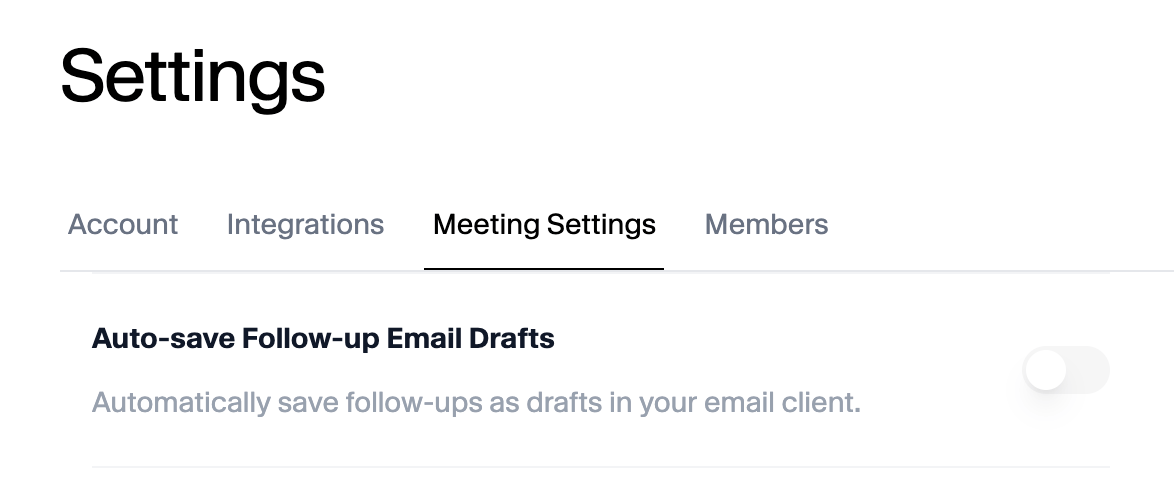
## Setting up Auto-Drafts

You can set up Auto-Drafts for Follow-Up Emails Post Meeting
<Frame>
  <img src="https://mintcdn.com/altruist-2003df37/53R_TmRTQQgXFeCV/images/autodraftsetup.png?fit=max&auto=format&n=53R_TmRTQQgXFeCV&q=85&s=9c2fd2cfab583c1cc1fb939dbfb4d876" alt="Autodraftsetup" width="1174" height="480" data-path="images/autodraftsetup.png" />
</Frame>