> ## Documentation Index
> Fetch the complete documentation index at: https://docs.hazel.ai/llms.txt
> Use this file to discover all available pages before exploring further.
# Overview
### How it Works
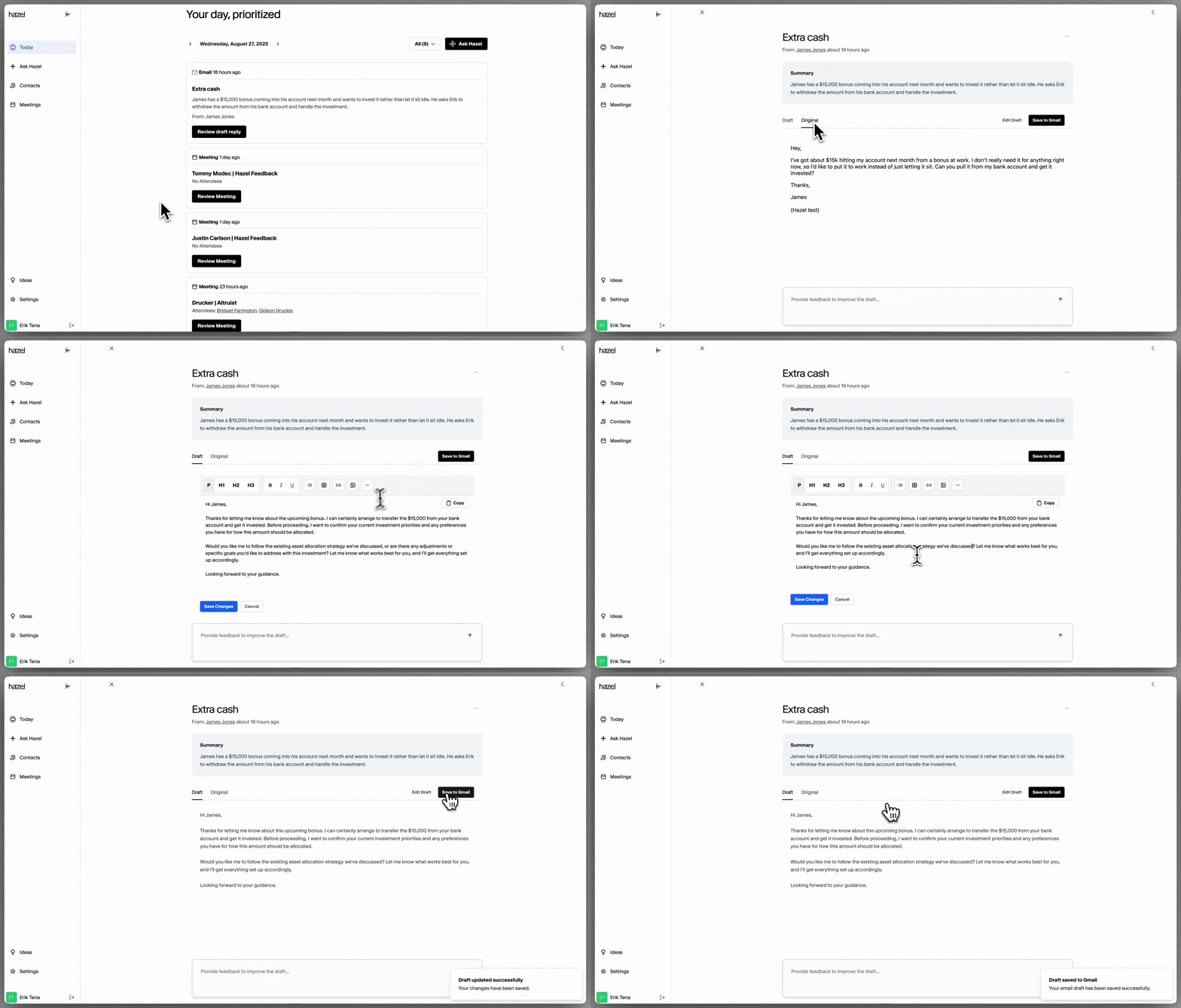 * Hazel screens emails, only sourcing those that come from your contacts in your CRM or contacts added in Hazel.
* Hazel will then pull relevant contact details to help you draft intelligent responses, ensuring every reply is timely and informed.
* Contact details are sourced from: previous meetings, previous emails, your CRM, etc.
* An intelligent response will be drafted based on the relevant context that Hazel sourced, ready for your review.
* Review and edit the response before saving the draft to your email.
### Viewing Emails from Household page
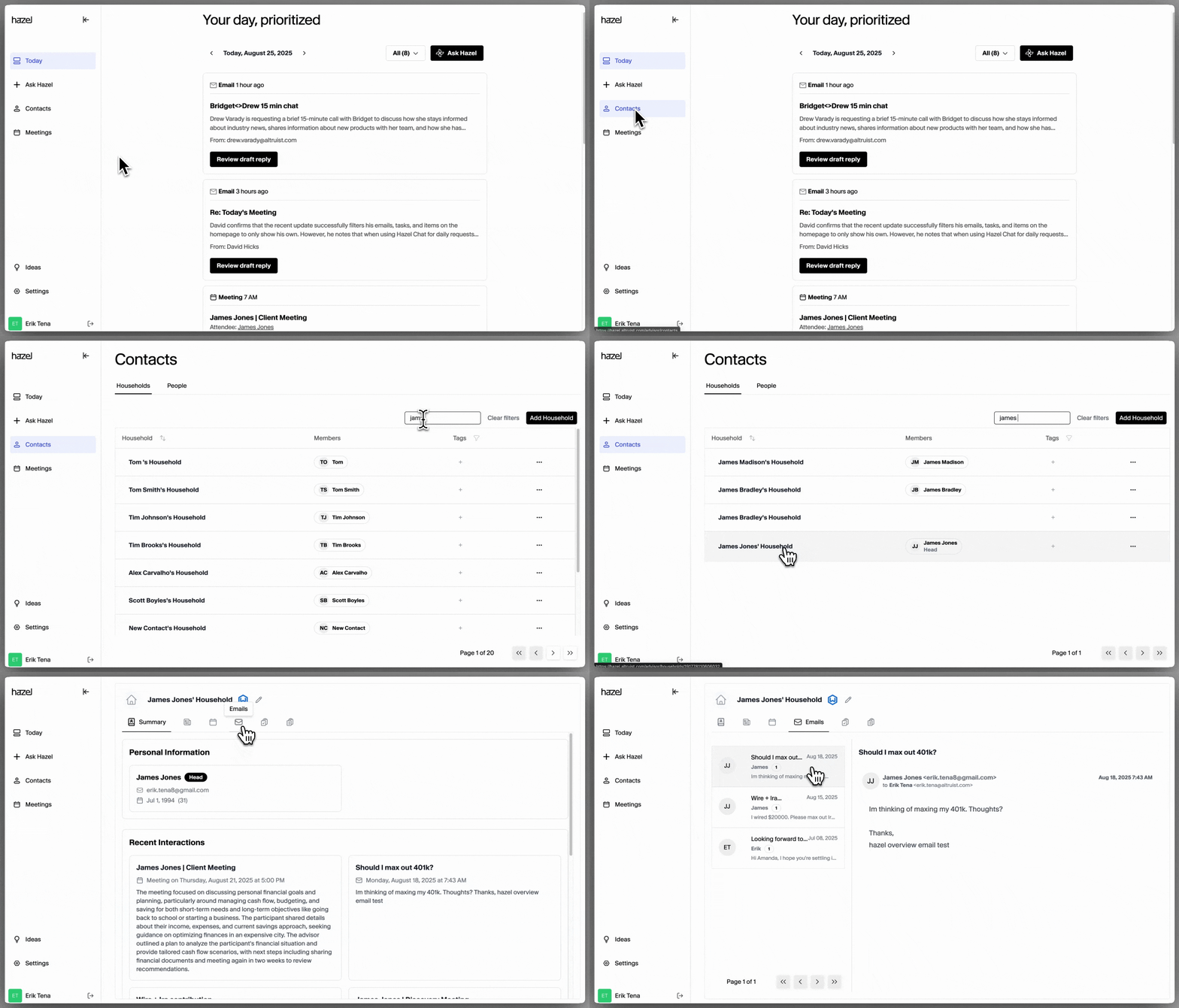
If you’d like to view all the emails that a client has sent, Ask Hazel! If you’d prefer to view all of the emails a client has sent you, you can do so by going to Contacts → select Contact → Emails.
* Hazel screens emails, only sourcing those that come from your contacts in your CRM or contacts added in Hazel.
* Hazel will then pull relevant contact details to help you draft intelligent responses, ensuring every reply is timely and informed.
* Contact details are sourced from: previous meetings, previous emails, your CRM, etc.
* An intelligent response will be drafted based on the relevant context that Hazel sourced, ready for your review.
* Review and edit the response before saving the draft to your email.
### Viewing Emails from Household page
If you’d like to view all the emails that a client has sent, Ask Hazel! If you’d prefer to view all of the emails a client has sent you, you can do so by going to Contacts → select Contact → Emails.